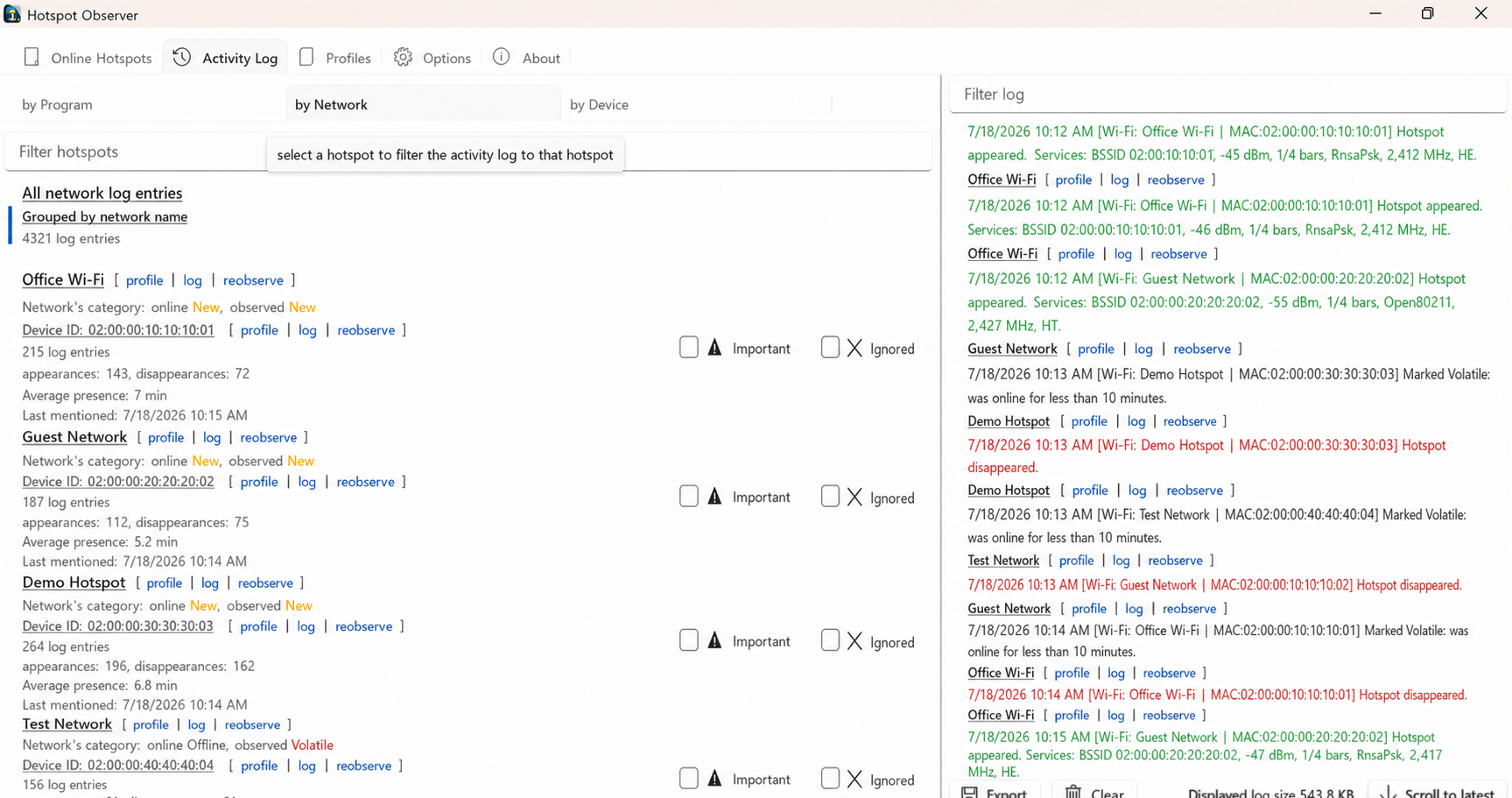
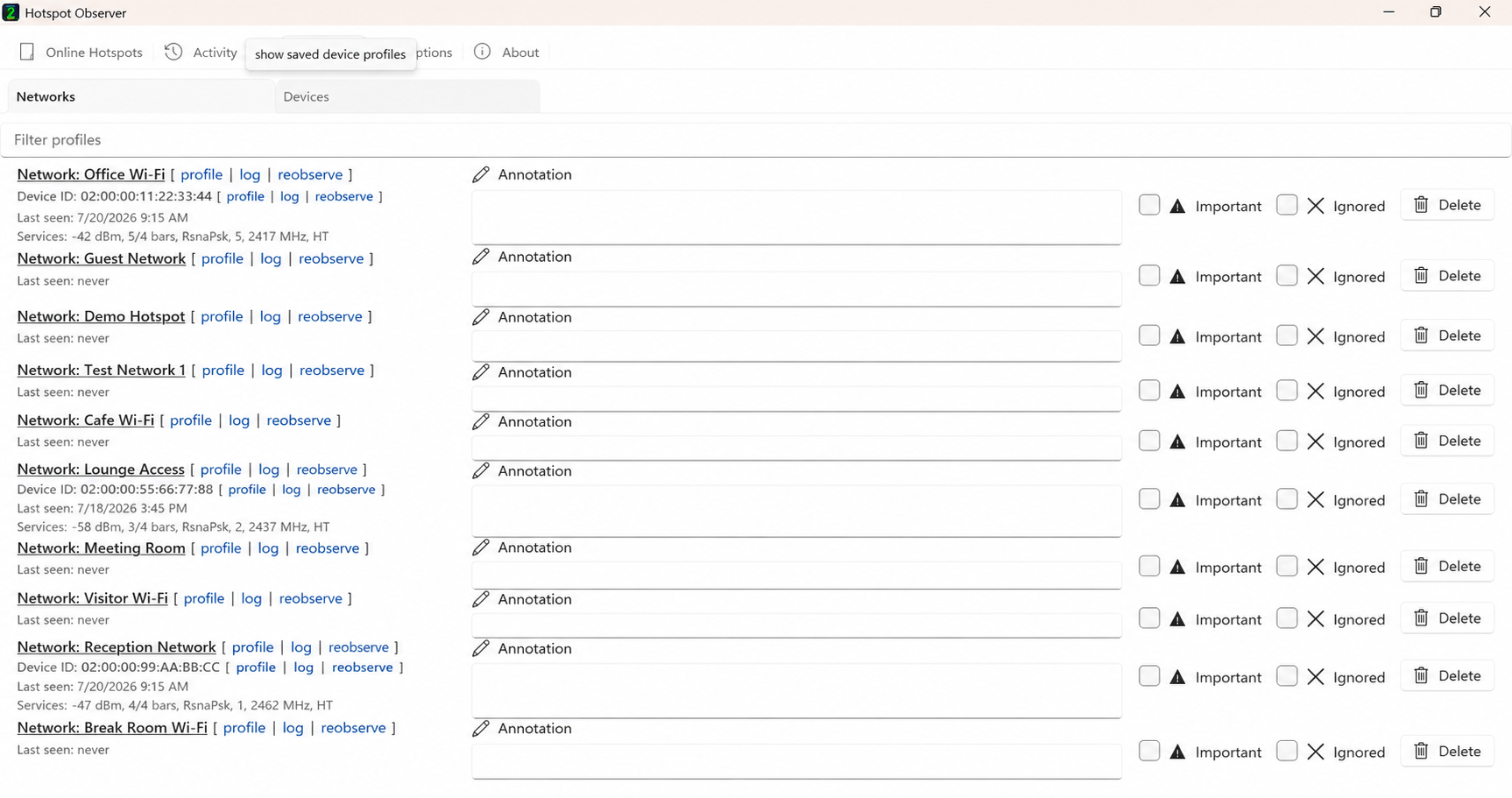
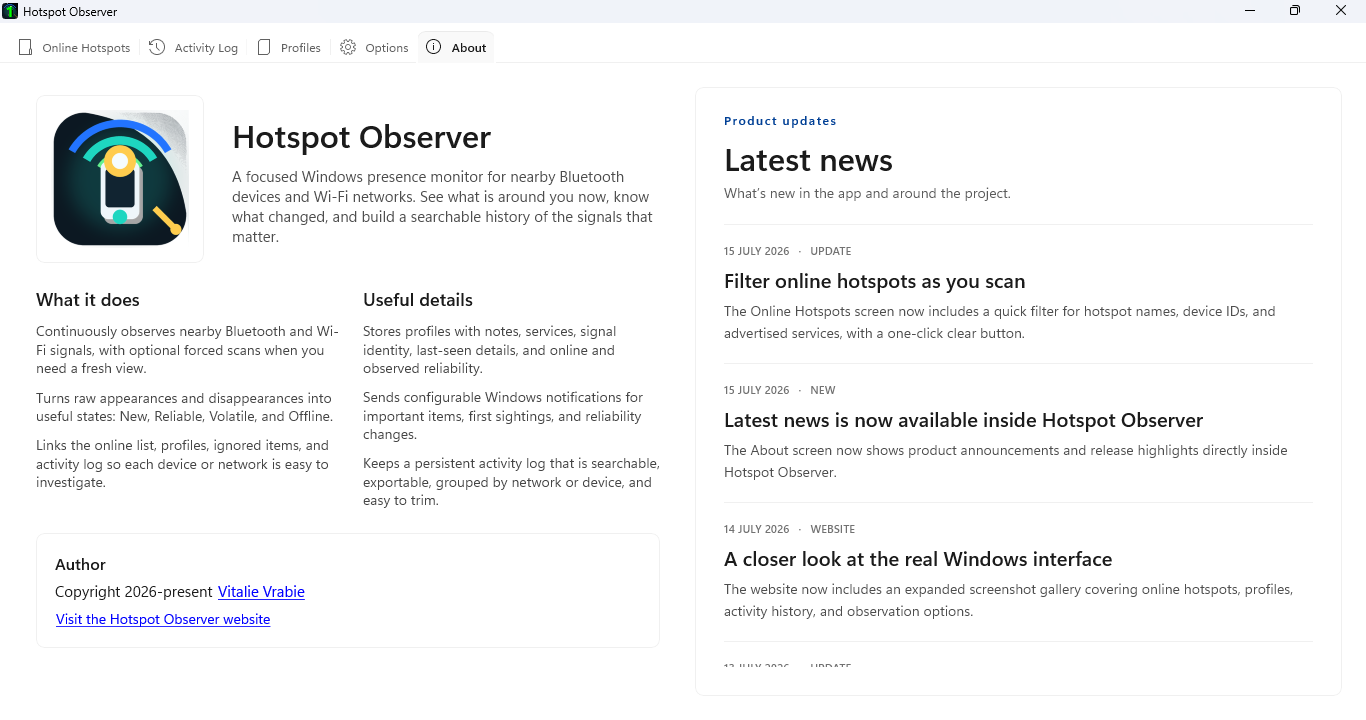
See the app observe nearby hotspots, calculate their ratings and control automatic connection to better-rated Wi-Fi you can access. Explore the history behind the ratings and the built-in connection tools. Select any screenshot to see it at full size.
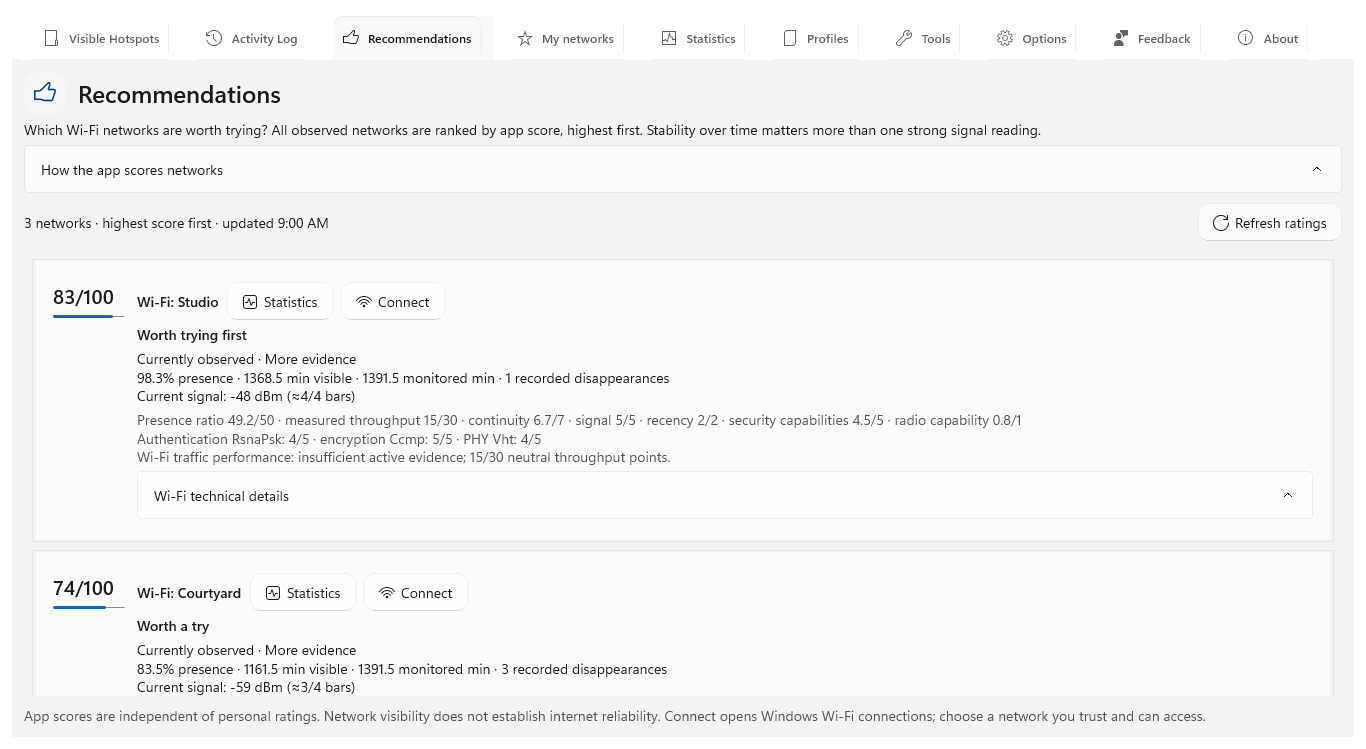
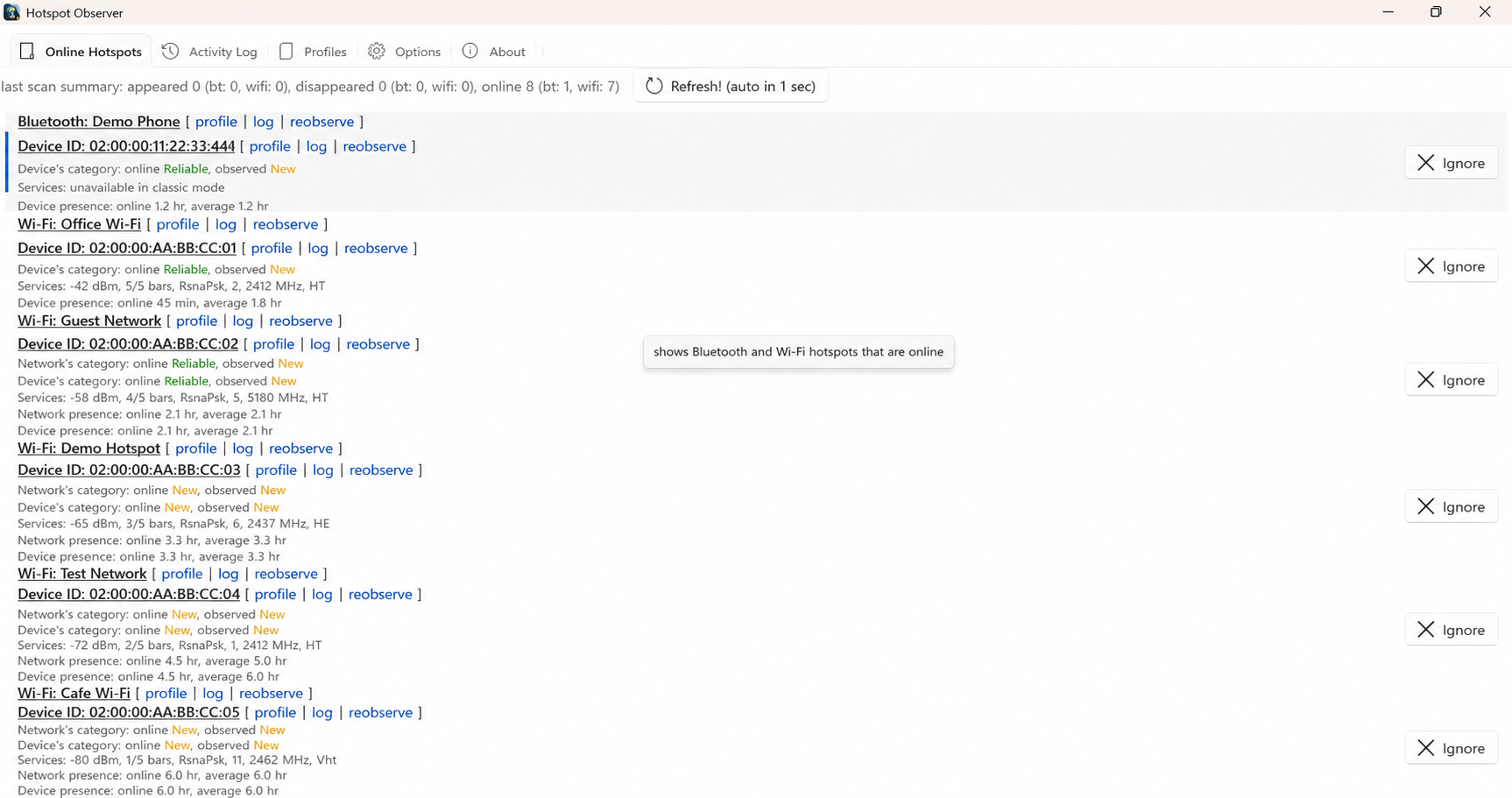
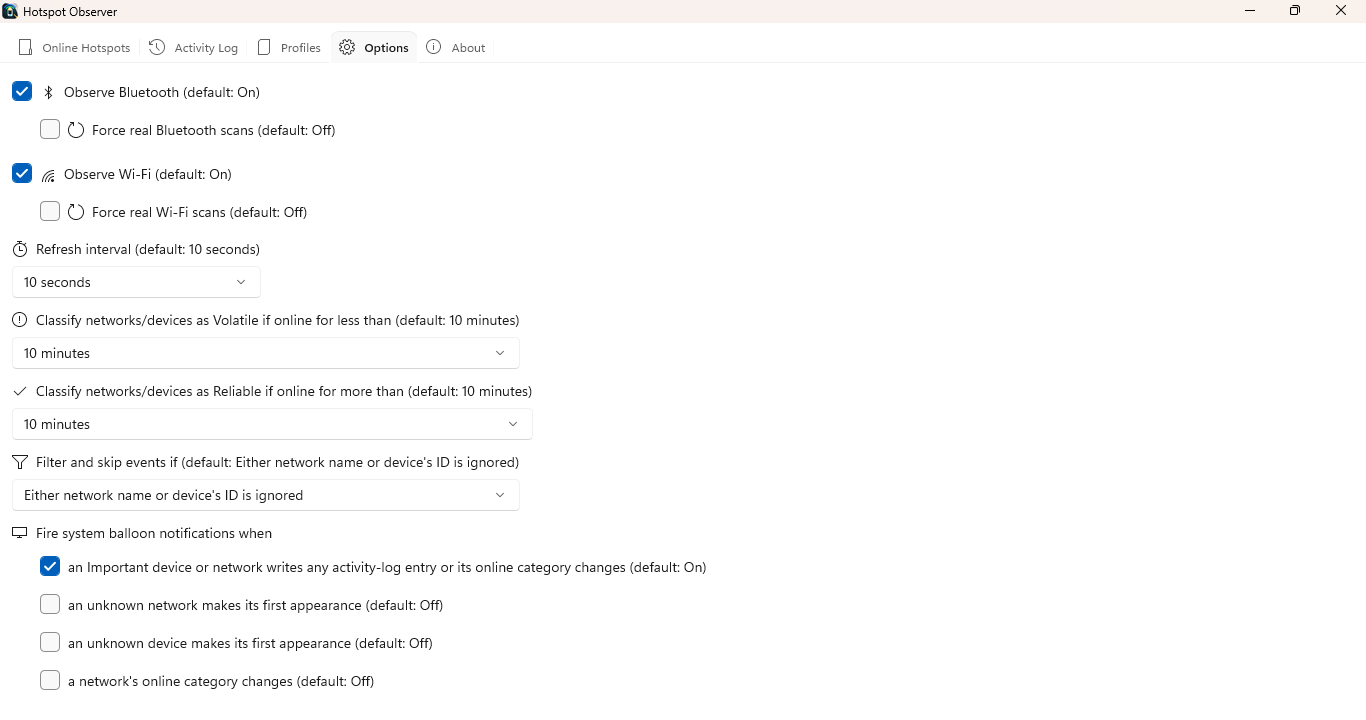
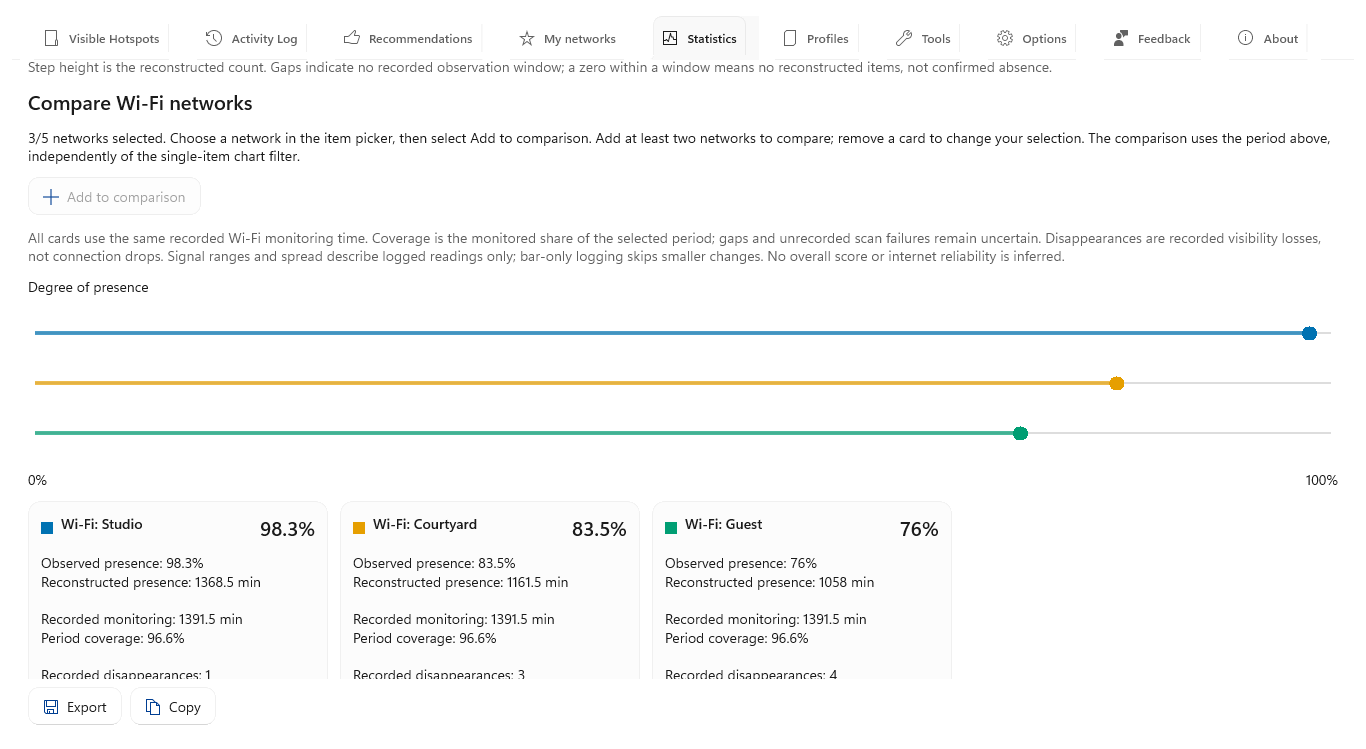
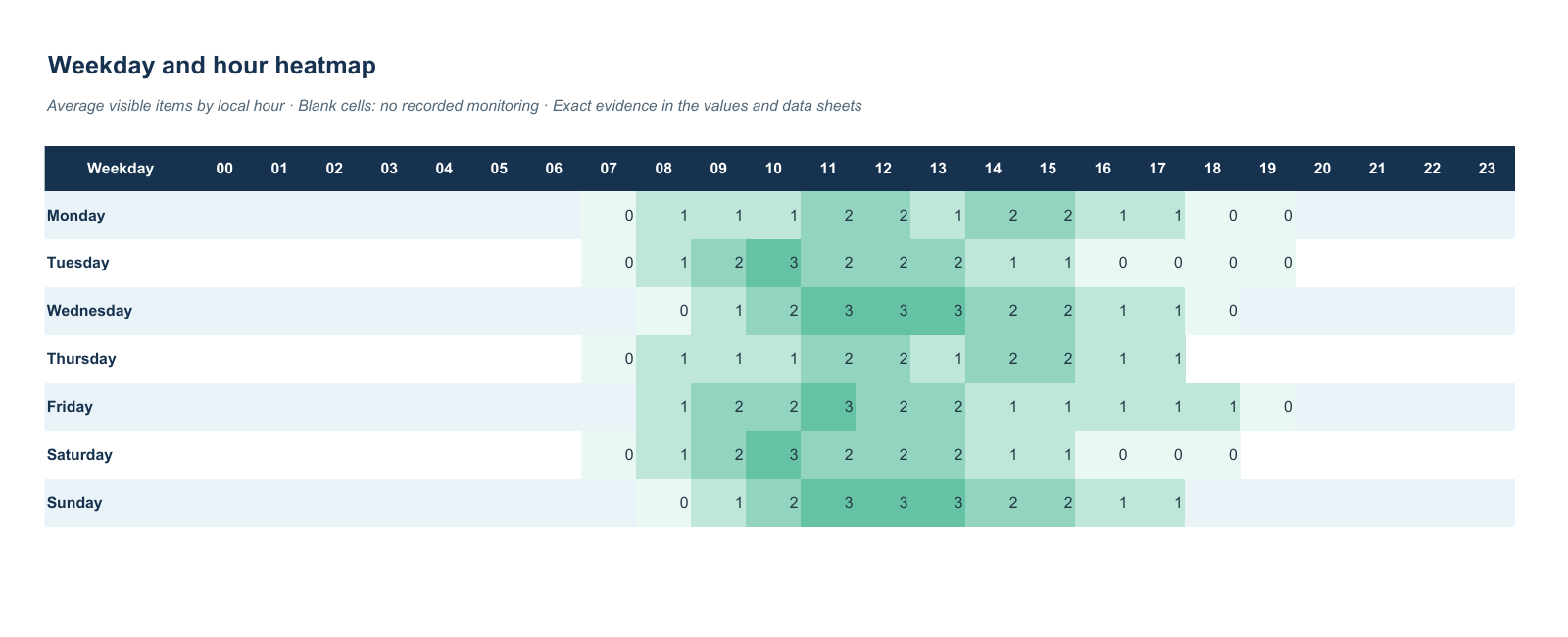
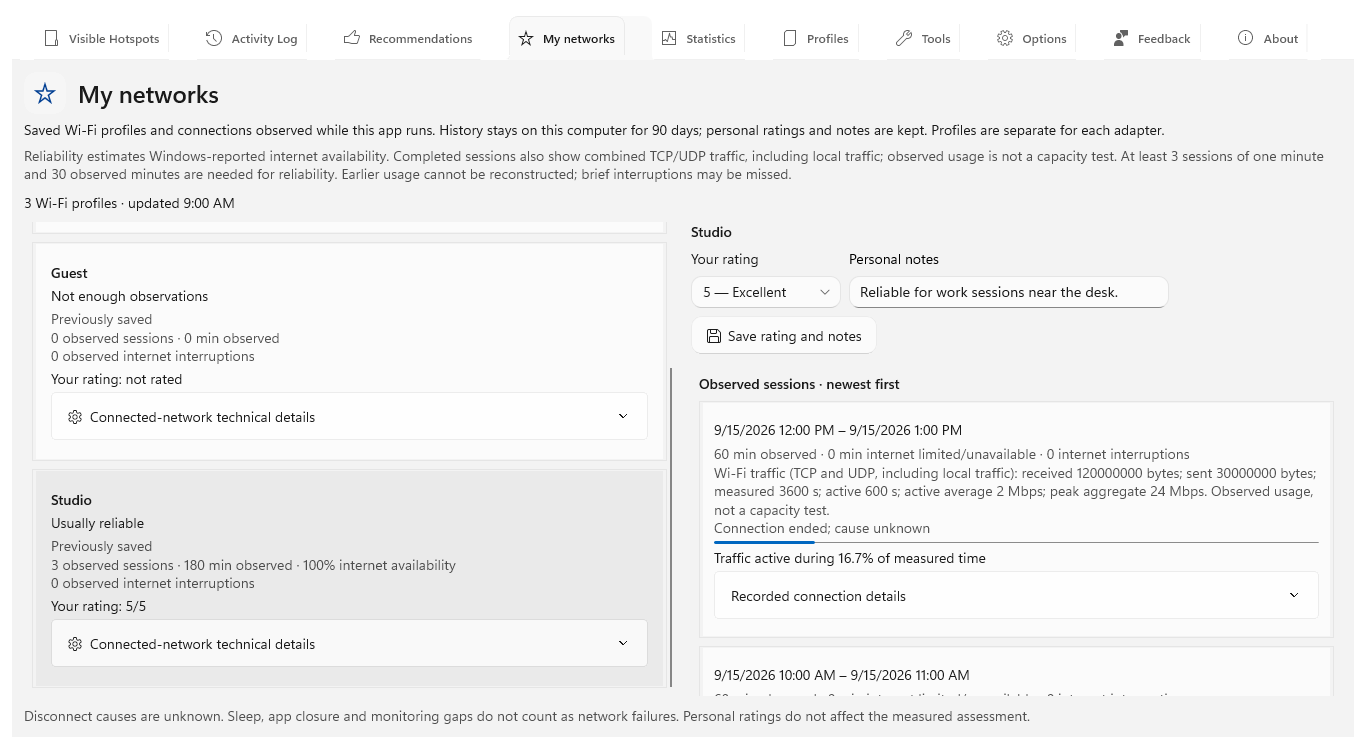
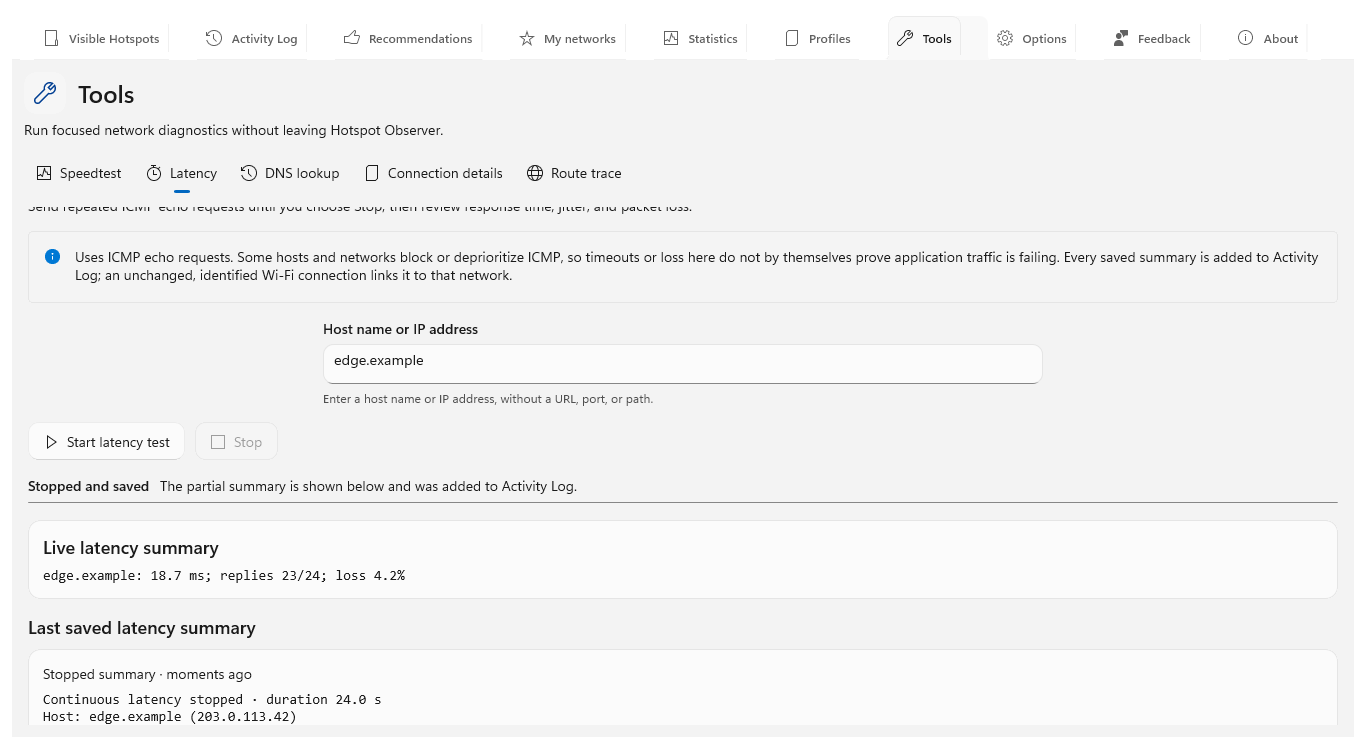
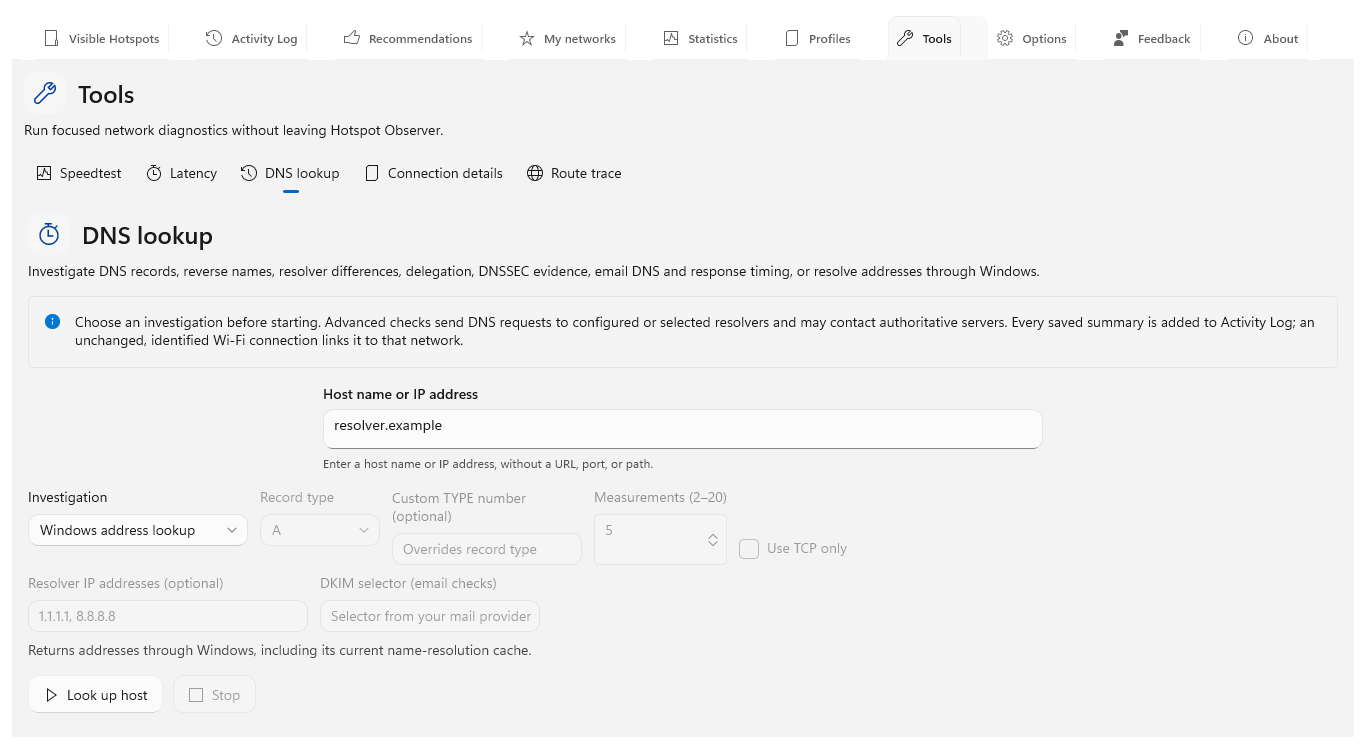
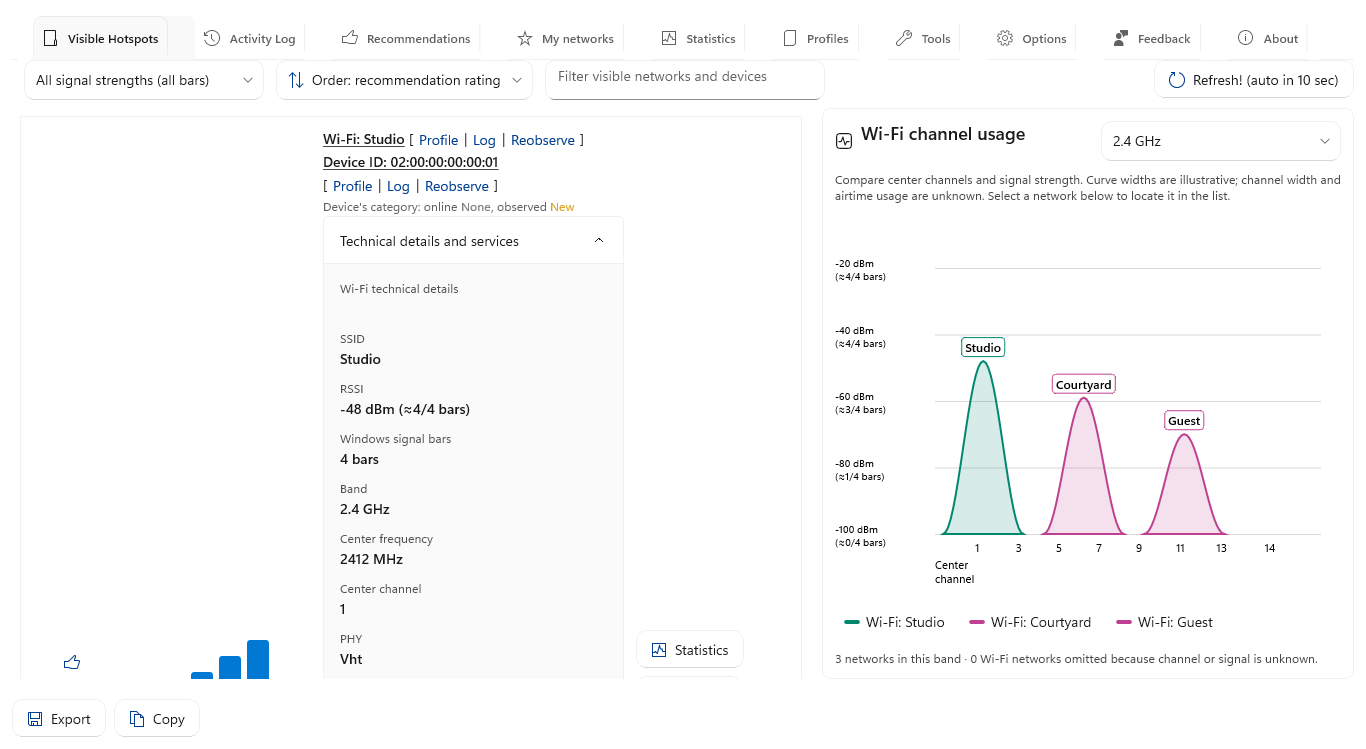
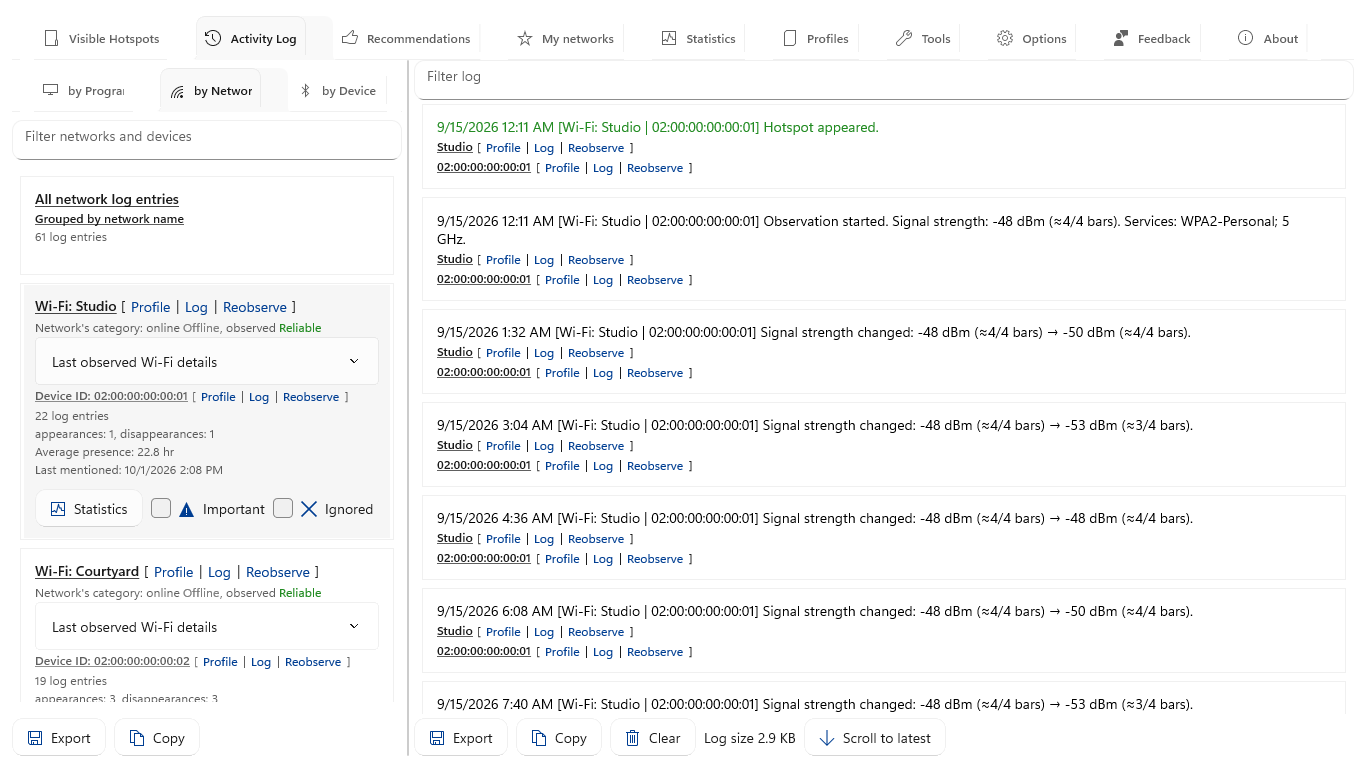
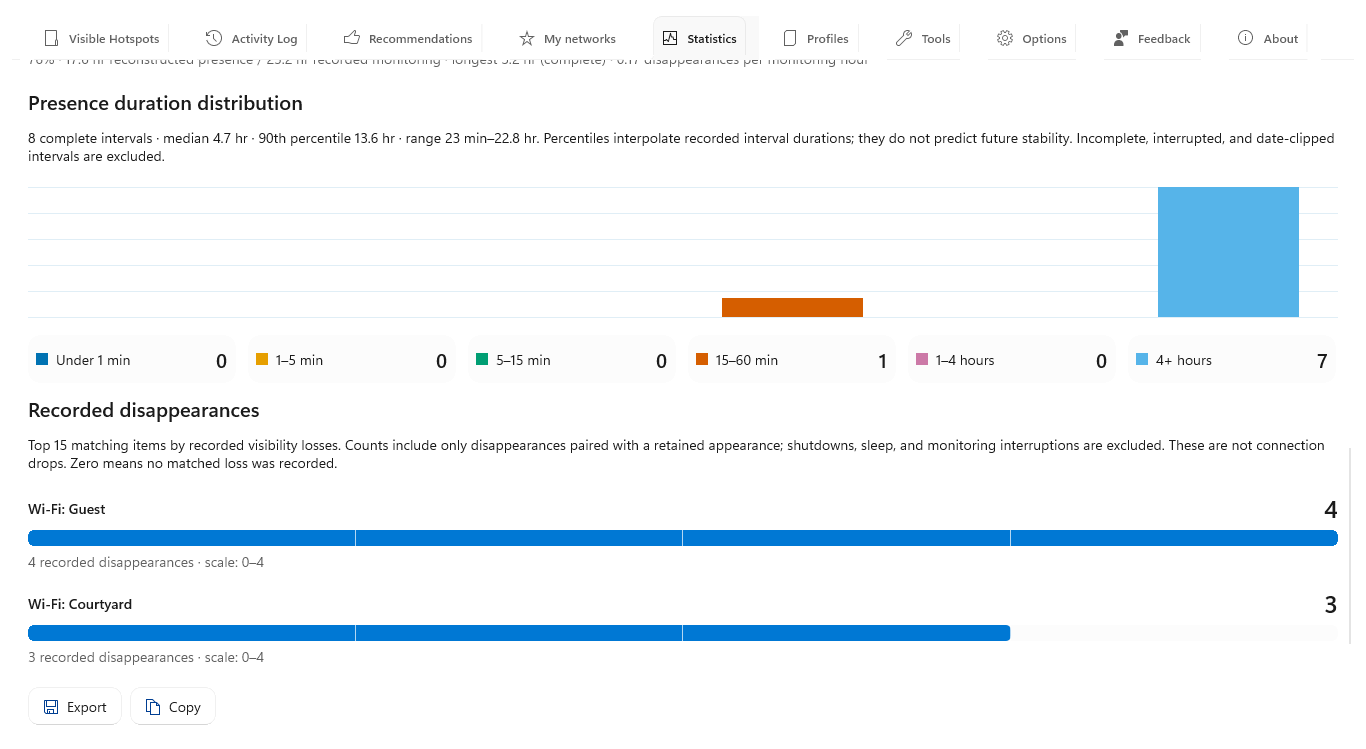
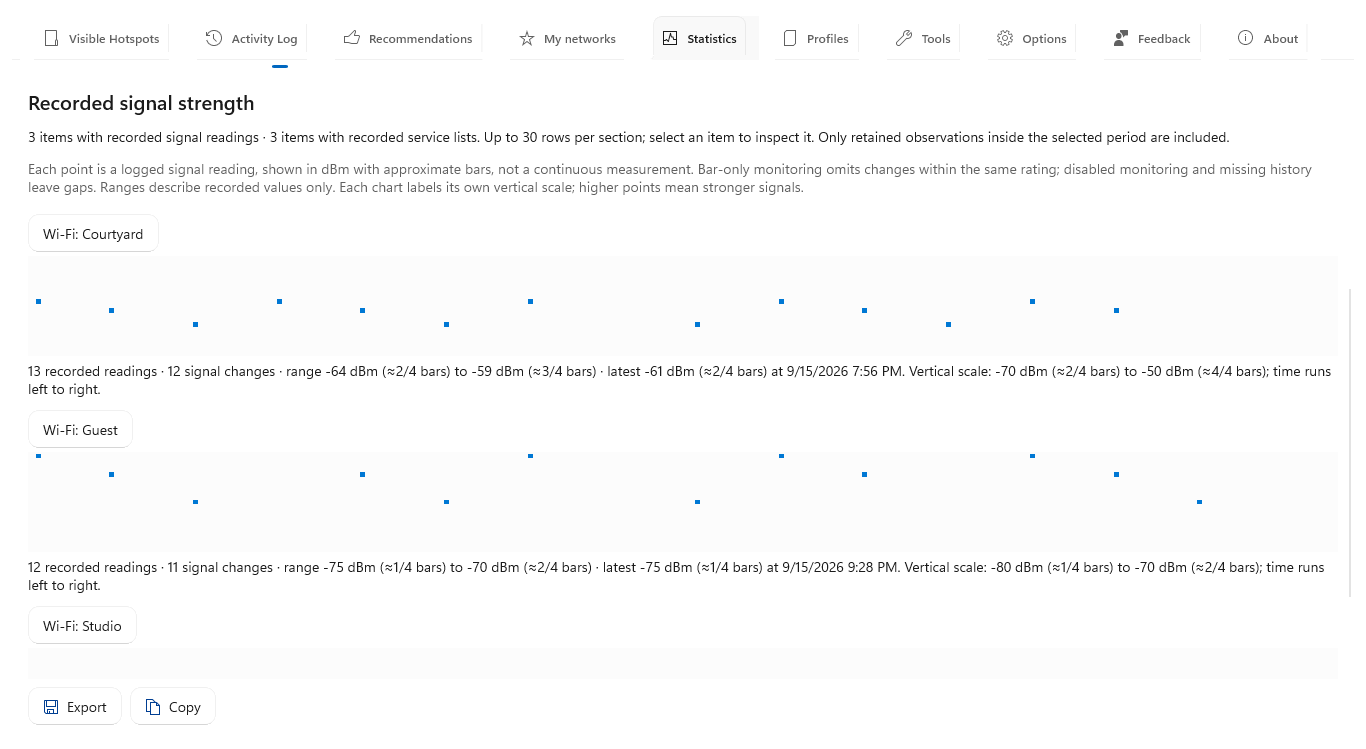
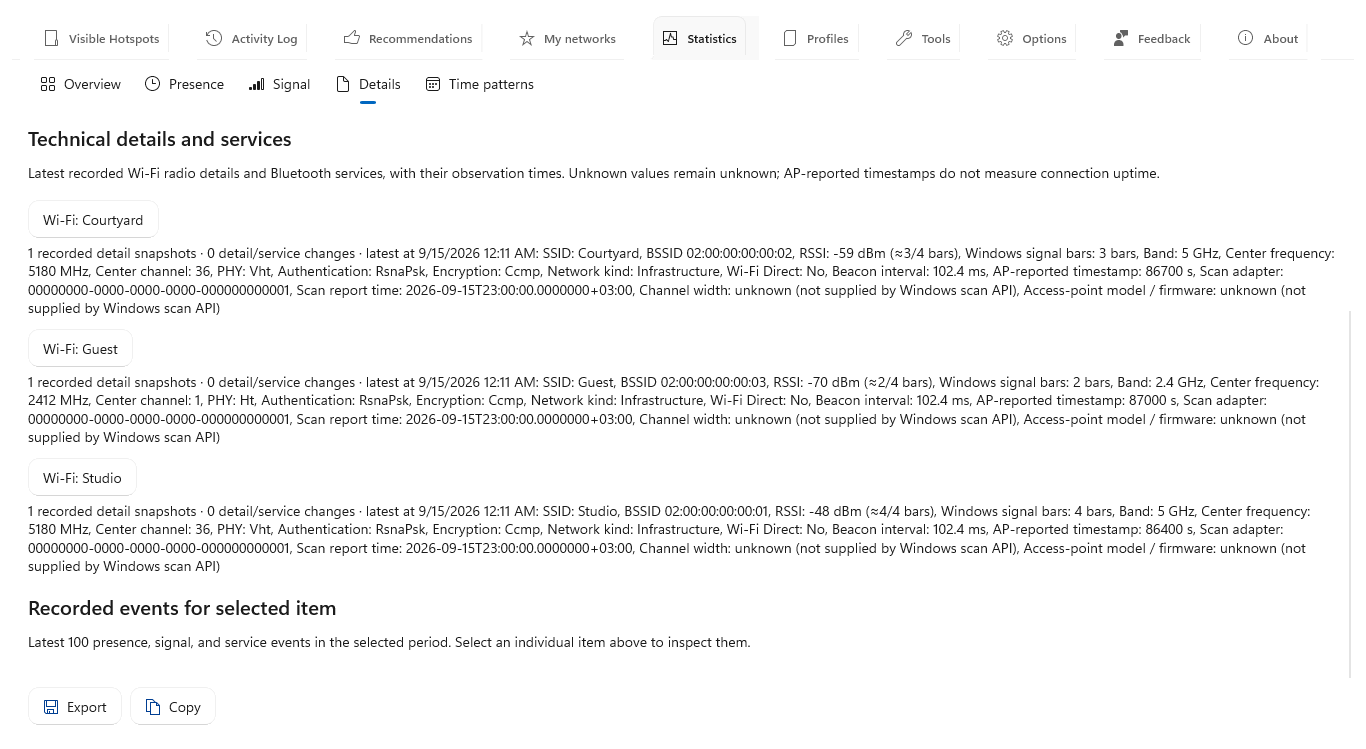
RecommendationsObserved Wi-Fi networks rated 0–100, highest first. Choose presence and throughput priorities in Options; each recommendation explains its weighted evidence and limits.Visible HotspotsCompare recommendation ratings and the Wi-Fi channel diagram beside the list. Choose a band, filter both panes, and select a diagram entry to locate its network.Options: Wi-Fi rating priorities and automatic choicesTry to keep Wi-Fi connected and switch to higher-rated networks automatically. Open networks require an explicit option, off by default. The transfer safeguard defers switching while traffic is active. Choose rating priorities and keep the manual shortcut available.Re-choose Wi-Fi intelligentlyThe tray command scans for a strictly higher-rated connectable visible network. Ctrl+Alt+W also works while the app window is hidden. With no better choice, your connection stays unchanged and a temporary tray message appears.Statistics: network comparisonCompare up to five networks in one colored chart on the same presence scale. Match each colored dot to its labeled evidence card for disappearances and recorded signal ranges.Statistics: weekday and hour heatmapFind weekly visibility patterns on a shared color scale. Gray dashes mark unmonitored hours; exact values and recorded minutes remain available beside the chart and in Excel reports.Statistics: overviewChoose the radio, items and period. Summary cards show average and peak visible items, complete durations and disappearances. A coverage ring separates recorded monitoring from unknown time, with exact percentages.Tools: SpeedtestTest your current connection sequentially or simultaneously. Follow receiving and sending rates, HTTP ping and jitter, then review the summary in Activity Log, linked to the unchanged Wi-Fi network when it is identified.Statistics: presence timelineFollow recorded presence and gaps. Lighter intervals indicate incomplete evidence.Excel reportA compact seven-by-24 heatmap keeps hourly averages readable in Excel. Colors share one scale, blank cells mean no monitoring, and separate sheets retain the exact evidence.My networksReview observed connection sessions and Windows-reported internet availability. Keep personal ratings and notes separately from app recommendations.Tools: continuous latencyMonitor ICMP response times and reply loss until you choose Stop and save the summary. Missing replies can reflect filtering rather than loss of other traffic.Tools: DNS lookupResolve a hostname through Windows and review its IPv4 and IPv6 addresses. The summary is saved to Activity Log.Tools: DNS investigationsCompare resolver replies and response durations, inspect records and TTLs, trace delegation, and review DNSSEC or email DNS evidence. Save completed query evidence in Activity Log.Wi-Fi technical evidenceExpand labeled radio and security fields in responsive columns while keeping the nearby list readable. Unknown values remain explicit; signal readings retain their bars.Tools: connection detailsInspect the Windows preferred route, adapter, IP addresses, gateways and DNS servers without changing network settings.Tools: route traceFollow responding ICMP hops toward a destination. Stop and save a partial trace; unanswered hops do not by themselves prove a broken route.Tools: saved summariesReview results from all five tools in Activity Log. Each produced summary is saved and linked to the Wi-Fi network when the same identified connection remains in use.Statistics: duration distributionCompare complete interval lengths in one histogram. Colors identify duration ranges; labeled counts remain explicit on the shared scale.Statistics: signal historyInspect logged signal readings with matching bar ratings. Points represent retained readings, not continuous measurements.Statistics: recorded detailsReview service lists and the underlying recorded events for the selected period.Activity log: networksReview history grouped by network. Copy the filtered rows or choose Excel, CSV or text from Export.Network profilesSelect a saved network to edit its note and preferences in the details pane or open Statistics.About and updatesSee a concise feature overview beside the News. Each pane scrolls independently; check for and install updates from About.