Build a Wi-Fi history you can use for your next connection choice. The free desktop beta lets you compare observed stability, review your own sessions and connect to better-rated networks you can access. Choose Windows or Linux below for the steps that get you running.
Start here
Which system do you use?
🐧
Experimental Linux preview · 5.13.0.0 beta
Choose your Linux package
Choose x64 for Intel or AMD 64-bit computers, or ARM64 for Linux computers with a 64-bit Arm processor. Each installer link stays the same across versions and always provides the current package. The adjacent VirusTotal button opens the URL report for that exact installer address. All formats include the same app, offline agreement and application-menu entry. Have administrator access and an internet connection ready so your package manager can add the required libraries. NetworkManager, BlueZ and a graphical desktop are required; Wayland sessions use XWayland.
Signed packages and first installation
Every Linux package is signed by Vitalie Vrabie. Save your package, its matching signature and the public signing key 🔑 in the same folder, then run the command on its card to verify and install it. Keep the package and signature filenames unchanged. Debian verification uses GnuPG; RPM and Arch packages use their native package tools. Key setup is needed once per computer. In-app updates keep their one-click flow.
After installation, open Hotspot Observer from your application menu, read the offline agreement and choose Accept and continue to start observing. About prepares and verifies updates in your installed package format; choose Install update to install and reopen the app. Your system may require administrator authentication.
Ubuntu App Center installation
Open the selected .deb file in App Center, choose Install and authenticate when asked. If App Center cannot open it or stays on Installing, use the command shown on the Debian / Ubuntu card to install the app and required libraries.
Updates and preview limits
Debian / Ubuntu packages register a signed APT update source for both x64 and ARM64. Other formats use About for in-app updates. All installer links stay the same across versions and provide the latest published package.
First installation? Trust the certificate, then save and open one installer. You need administrator approval for the certificate. Already using the app? Open About → Check for updates. For a manual installation with the current certificate already trusted, go straight to the installer.
1
First installation only
Install the public certificate
🛡
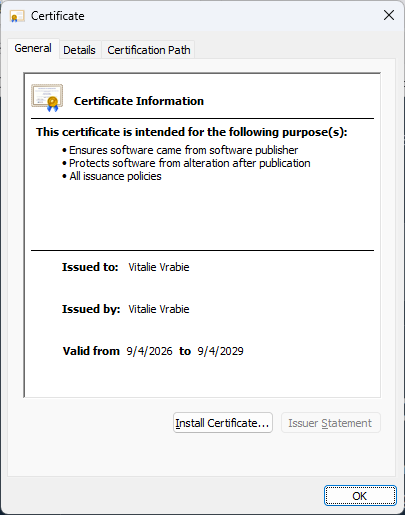
Save the public certificate directly from this site. It contains no private key and does not install the app; it lets Windows verify packages signed by Vitalie Vrabie.
◆ Only trust the certificate saved from this page. Stop if the certificate is not issued to Vitalie Vrabie.
1
Open the saved certificate
Select Install Certificate.
2
Choose Local Machine
Approve the administrator prompt when Windows asks.
3
Choose Trusted People
Select Place all certificates in the following store, then choose Trusted People and finish the wizard.
Show the certificate guide, screen by screen
Follow the Windows prompts
Certificate installation, screen by screen
Use Previous and Next to follow all six screens.
Certificate installation · step 1 of 6
Start the wizard
Expected result: “The import was successful.”If the certificate was already installed, you can continue now. This button updates the checklist and takes you to the installer choices.
2
Choose one file
Get your Windows installer
↓
Get the package your computer can run by choosing one matching installer. Most laptops use 64-bit. If you are unsure, check Settings → System → About → System type before saving the file.
Your browser saves one .msix file, usually in its default saved-files folder. Do not rename or modify it. The VirusTotal link beside each installer opens an independent scan report for its public web address; it is optional and is not another file.
Finished saving one installer?Continue after the MSIX file is saved on your laptop to see how to install and open the beta.
3
Finish
Open the MSIX and install
✓
Open the .msix fileFind it in your browser’s saved-files list or its default saved-files folder.
Verify the publisherThe installer must show Vitalie Vrabie. Do not continue if it shows another publisher or Unknown.
Select InstallWindows installs the beta so you can open it from Start. Leave any existing installation in place unless the installer specifically reports a conflict.
Open Hotspot ObserverRead the offline agreement, select its acceptance checkbox and choose Accept and continue. Allow the Windows location access needed for Wi-Fi scanning. Leave the app running where you use Wi-Fi to start building evidence for your next choice.
Checksums, older versions and advanced certificate help
To detect an incomplete or altered file, compare each installer with the project’s published SHA-256 checksums.
If App Installer still cannot verify the publisher certificate, open PowerShell as administrator in the folder containing the certificate and run Import-Certificate -FilePath .\HotspotObserver.cer -CertStoreLocation Cert:\LocalMachine\TrustedPeople, then reopen the MSIX.