Guide 08
Choose Wi-Fi for the work you need to do
Make a more informed Wi-Fi choice by checking which networks stayed visible where you work. Compare their recorded history and ratings, then try an accessible candidate with your real tasks.
Where you will workRecommendations, Statistics, and Re-choose Wi-Fi intelligently
Allow10 minutes after useful history has been recorded
Watch the key steps
A 45-second narrated overview. Follow the full instructions below when you try it.
Read the video transcript
Record useful history. Keep Hotspot Observer running where and when you use Wi-Fi. Enable persistent Activity Log history so comparisons have recorded evidence.
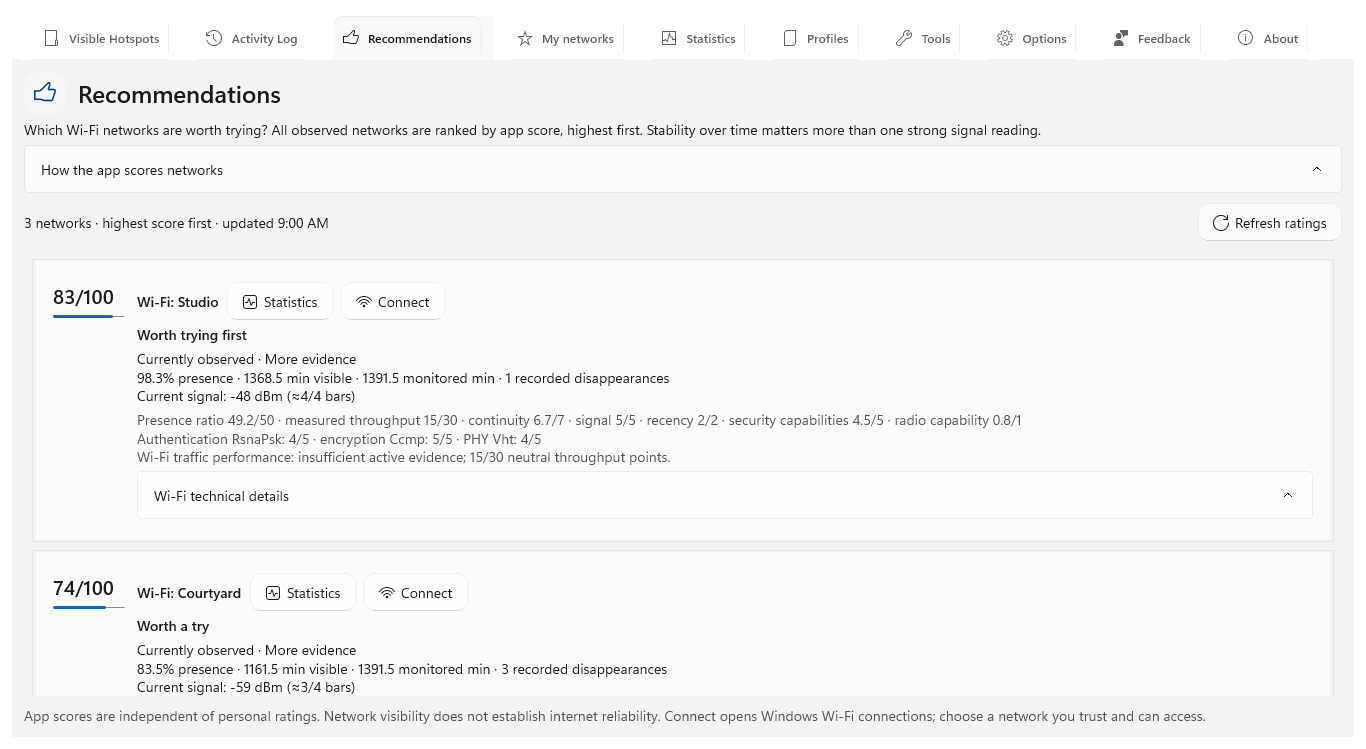
Read the recommendation. Open Recommendations and inspect the rating explanation. Compare recorded presence and supporting factors rather than relying on a single signal reading.
Check the history. Open Statistics for candidate networks. Compare the same period, monitoring coverage and disappearances. Unobserved time stays unknown.
Try and review. Use a network Windows can join, then review its observed sessions in My networks. Add your experience. A higher recommendation does not guarantee internet access or future stability.
Open the app view at full size to inspect its controls.
Before you start
Give your result a useful basis
- Run Hotspot Observer in the place and during the hours where you plan to use Wi-Fi.
- Keep Activity Log persistence enabled long enough to capture repeated appearances and disappearances.
- Confirm that Windows has saved credentials for any secured network you may ask the app to choose.
Build useful history
Give your choice a useful basis by leaving the app running where and when you normally use Wi-Fi. Repeated observations let you compare presence over time; short or old records receive limited scores.
Open Recommendations
Start your shortlist in Recommendations, where Wi-Fi networks are ranked from 0 to 100 with their points explained. In Options → Wi-Fi rating priorities, choose Presence first (50% presence / 30% throughput, the default), Balanced (40% / 40%) or Throughput first (30% / 50%). Supporting factors share 20%: disappearances 7, signal 5, recency 2, authentication/encryption 5 and radio capability 1. Throughput uses recent completed sessions on the same access point after 30 active seconds and one MB; missing evidence receives half the selected throughput weight. Active averages of 1, 10 and 100 Mbps receive zero, half and full throughput points on a logarithmic scale. Limited history is capped at 60 and absent networks at 35. Your priority applies to nearby ratings, Recommendations and automatic choices.
Compare technical capabilities
Use technical points as supporting evidence when comparing otherwise similar candidates. WPA2/WPA3, modern encryption and newer PHY capability receive modest preference. Signal and technical points use the strongest currently observed access point; missing fields are neutral. Band, channel, beacon interval and AP uptime alone add no quality bonus, and these details do not establish trust or available internet speed.
Inspect a candidate
Check whether a promising network stayed visible during the hours you need. Choose its Statistics action and compare presence, gaps, disappearances and signal with bars over the same period. Add up to five Wi-Fi networks to compare them together.
Connect or re-choose
Try a network you can access: Connect opens Windows Wi-Fi connections. For an automatic choice, use Re-choose Wi-Fi intelligently in the tray or your configured shortcut. It scans and switches only to a strictly higher-rated visible network your system can join with saved credentials, or to an open network.
Test the real connection
Before relying on your choice, try the work you intend to do. Ratings combine observed presence, actual traffic and supporting factors; passive traffic includes local use and does not measure spare capacity. Scores cannot guarantee latency, internet access, security or future uptime. Switching can briefly interrupt connectivity.
Check what you gained
You can now check that
- You can explain why the leading network scored higher using presence ratio, measured throughput, disappearances, signal, recency and recorded technical capabilities.
- You compared candidates over the same period instead of relying on one current signal reading.
- You tested the chosen connection for the real work you intend to do.
Updated by Hotspot Observer · 21 October 2026