Guide 07
Find clues when a website name will not resolve
Narrow down a name-resolution problem by comparing DNS answers and response times. Keep the results so you can explain what failed or compare a later check without changing your DNS settings.
Where you will workTools → DNS lookup, Connection details, and Activity Log
Allow5–10 minutes
Watch the key steps
A 43-second narrated overview. Follow the full instructions below when you try it.
Read the video transcript
Inspect the connection. Open Tools and Connection details. Note the configured DNS servers. Network tools also work over Ethernet when Wi-Fi is disconnected.
Query the exact name. Choose DNS lookup. Enter the name without a web address scheme or path, select the record type, and run the query.
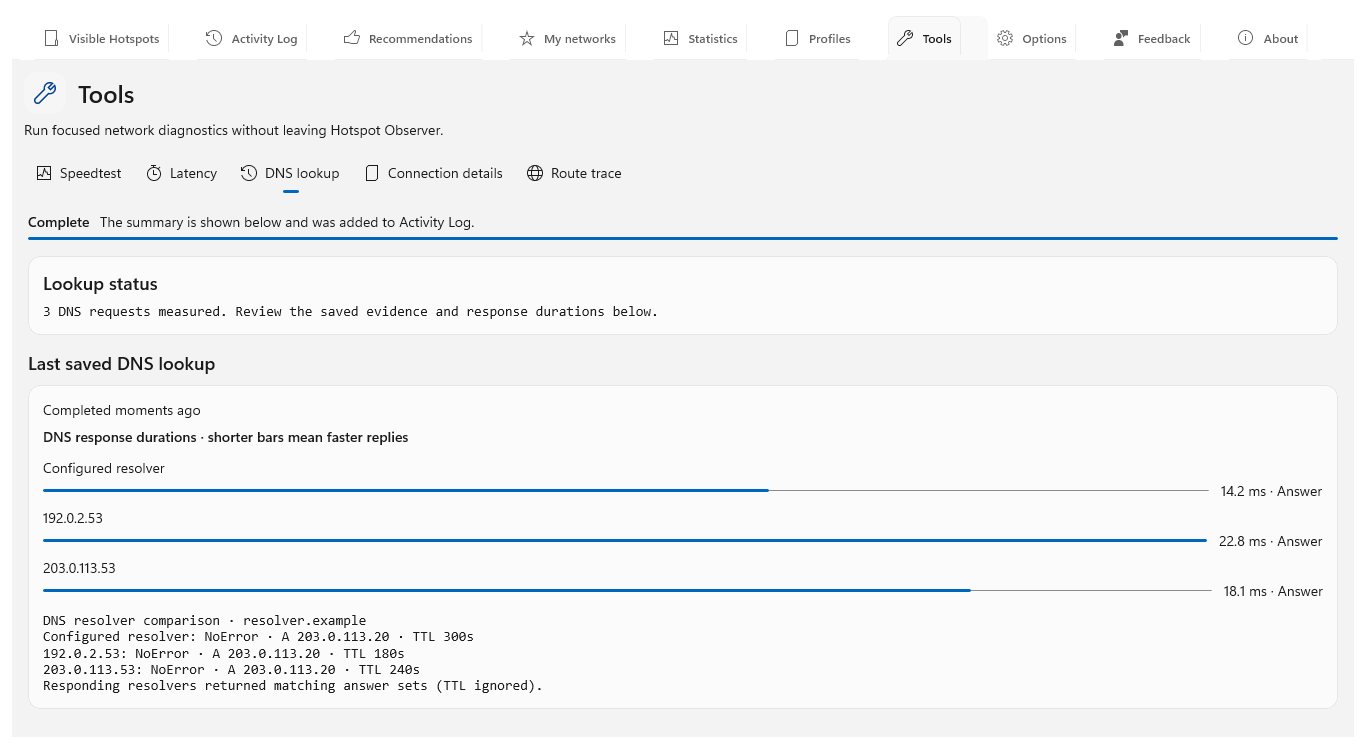
Compare resolver evidence. Compare answers, response codes, responding resolvers and timings without changing the connection. A resolver comparison sends queries to the selected servers.
Keep the result. Review the saved summary in Activity Log. DNS evidence helps isolate name-resolution problems; a successful lookup does not establish that a website or internet connection works.
Open the app view at full size to inspect its controls.
Before you start
Give your result a useful basis
- Write down the exact DNS name that fails. Enter a name or IP address without a URL scheme, port or path.
- Use Connection details to inspect the current interface and configured DNS servers. Tools also work on a wired connection without Wi-Fi.
- Keep the connection unchanged while comparing results, and use only resolver addresses you intend to contact.
Start with Windows resolution
See the name-resolution result your Windows applications normally use. Open Tools → DNS lookup, choose Windows address lookup in Investigation, enter the affected name and select Look up host. This keeps normal Windows IPv4/IPv6 resolution and cache behavior as your baseline.
Ask for the record you need
Check the record relevant to your problem with DNS record query: A or AAAA for addresses, for example. Results show the answering resolver, response code, TTLs, answers, authority and additional records. An answer with no requested records is different from a timeout or name error.
Compare resolver answers
Find out whether resolvers disagree using Compare resolvers. Enter up to eight comma-separated IPv4/IPv6 resolver addresses without ports to compare with configured DNS. Leave it blank to also check DNS resolver addresses 1.1.1.1, 8.8.8.8 and 9.9.9.9. Read each response and timing; network policy may block a public resolver.
Check whether the result repeats
Check whether a slow or changing answer repeats: choose Repeated measurements and request 2–20 checks. Review minimum, average and maximum timings and answer changes. TTL changes are ignored; the app cache is bypassed, but upstream caches remain.
Check transport or delegation
For a deeper investigation, use TCP only to compare TCP responses, or Trace delegation to follow referrals from root to an authoritative server. Truncated UDP replies otherwise fall back to TCP. Delegation has a 16-hop limit and marks incomplete results; use the zone apex for DNSSEC zone-key evidence.
Keep and interpret the result
Keep findings in Activity Log, then Copy or Export them before retention removes older history. Stop retains completed advanced-query evidence. If DNS answers look useful but the site still fails, try Latency or Route trace and the site itself in your browser; a DNS answer alone cannot confirm working application traffic.
Check what you gained
You can now check that
- You have the response code, answers, responding resolver and timing for the name and record type you checked.
- The produced summary is saved in Activity Log, including when no Wi-Fi network can be identified.
Updated by Hotspot Observer · 21 October 2026