Guide 06
Let the app help you stay connected to better-rated Wi-Fi
Reduce manual Wi-Fi selection by choosing when the app reconnects or considers a better-rated available network. Keep control over switching and use the transfer safeguard to defer it while traffic is active.
Where you will workOptions, Recommendations, the tray menu, and Activity Log
Allow5–10 minutes after recording useful history
Watch the key steps
A 51-second narrated overview. Follow the full instructions below when you try it.
Read the video transcript
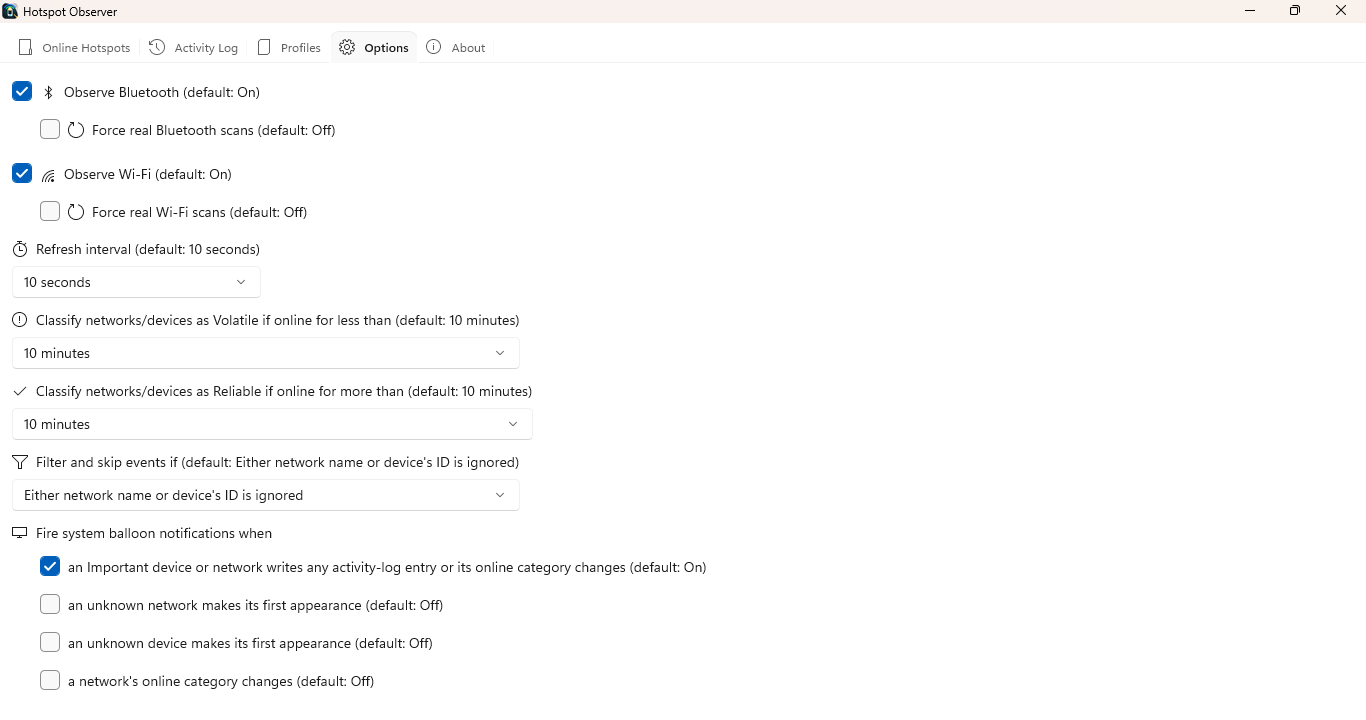
Prepare eligible networks. Keep Wi-Fi scanning enabled and save secured network credentials. In Options, enable Only connect to networks known to have internet to require previously observed access. Connect manually once to let the app observe an unknown access point.
Protect active traffic. Keep Only when there are no active transfers enabled to defer automatic switching during adapter traffic. Switching can still briefly interrupt a connection.
Review rating priorities. Choose Wi-Fi rating priorities in Options. Review the supporting evidence in Recommendations before favoring presence, throughput, or a balanced score.
Check the outcome. Use Re-choose Wi-Fi intelligently from the tray when you want an immediate choice. Read the attempt in Activity Log. Turn both automatic options off to restore Windows preferences.
Open the app view at full size to inspect its controls.
Before you start
Give your result a useful basis
- Enable Wi-Fi scanning and keep the app running; its window can be hidden.
- Use Windows to save credentials for secured networks you want the app to join. A candidate must be visible and connectable on the relevant adapter.
- Build history where you use Wi-Fi so automatic choices have useful stability evidence.
Choose how to reconnect
To reduce manual reconnecting, review Try to keep Wi-Fi always connected in Options. It is on by default. With Wi-Fi scanning enabled, the app tries the highest-rated visible network your system can join when disconnected, excluding ignored networks and using secured networks with matching saved profiles on the same adapter. Allow open Wi-Fi networks for automatic connection is off by default; enable it to include open networks in automatic reconnection and switching, even when an open profile was already saved. Manual tray and shortcut selection remain available.
Require known internet access
Enable Only connect to networks known to have internet to restrict automatic reconnects and switches to networks and access points where the app has observed internet access. It starts off. Unknown access points are skipped; connect manually once and let the app observe access to make one eligible. Previous access does not guarantee internet is available now.
Choose when to switch
Decide whether the app should consider a better candidate while you are connected. Automatically switch to a better-rated hotspot when one is available is on by default. A candidate must be eligible and strictly higher rated; equal or lower scores keep your connection. Automatic attempts are at least one minute apart.
Protect current traffic
Defer automatic switching during traffic by keeping Only when there are no active transfers enabled. The app waits for two seconds without received or sent traffic on the connected Wi-Fi adapter, including local TCP and UDP traffic. Unknown measurements defer switching; manual tray and shortcut commands remain immediate.
Set the rating priorities
Match choices to your priorities in Options → Wi-Fi rating priorities. Presence first gives 50% to presence and 30% to throughput, Balanced gives 40% each, and Throughput first gives 30% and 50%. Supporting factors share 20%. Recommendations explains the points; missing or insufficient throughput evidence receives neutral points.
Request a choice now
When you want a choice now, use the tray’s Re-choose Wi-Fi intelligently or your configured shortcut. It scans for a strictly higher-rated visible network your system can join. Read Activity Log for the outcome and any attempt to restore the previous connection after a failed switch.
Return control to Windows when needed
To return automatic choices to your system, turn off both automatic options, turn off Wi-Fi scanning or quit. The app restores the saved networks’ original automatic-connection preferences while keeping credentials. If an adapter is unavailable, restoration is retained for a later attempt.
Check what you gained
You can now check that
- The reconnect, switching, transfer-protection and rating-priority settings match how you want to use Wi-Fi.
- Activity Log explains a connection attempt's outcome, or why automatic selection could not proceed.
Updated by Hotspot Observer · 25 October 2026