Guide 04
Notice changes to the networks and devices you care about
Spend less time watching the list. Mark useful networks and devices Important, choose their alerts, and jump from a notification to the item and its logged evidence.
Where you will workImportant markers, Options notifications, Profiles, and Activity Log
Allow5 minutes, then wait for a relevant observed event
Watch the key steps
A 39-second narrated overview. Follow the full instructions below when you try it.
Read the video transcript
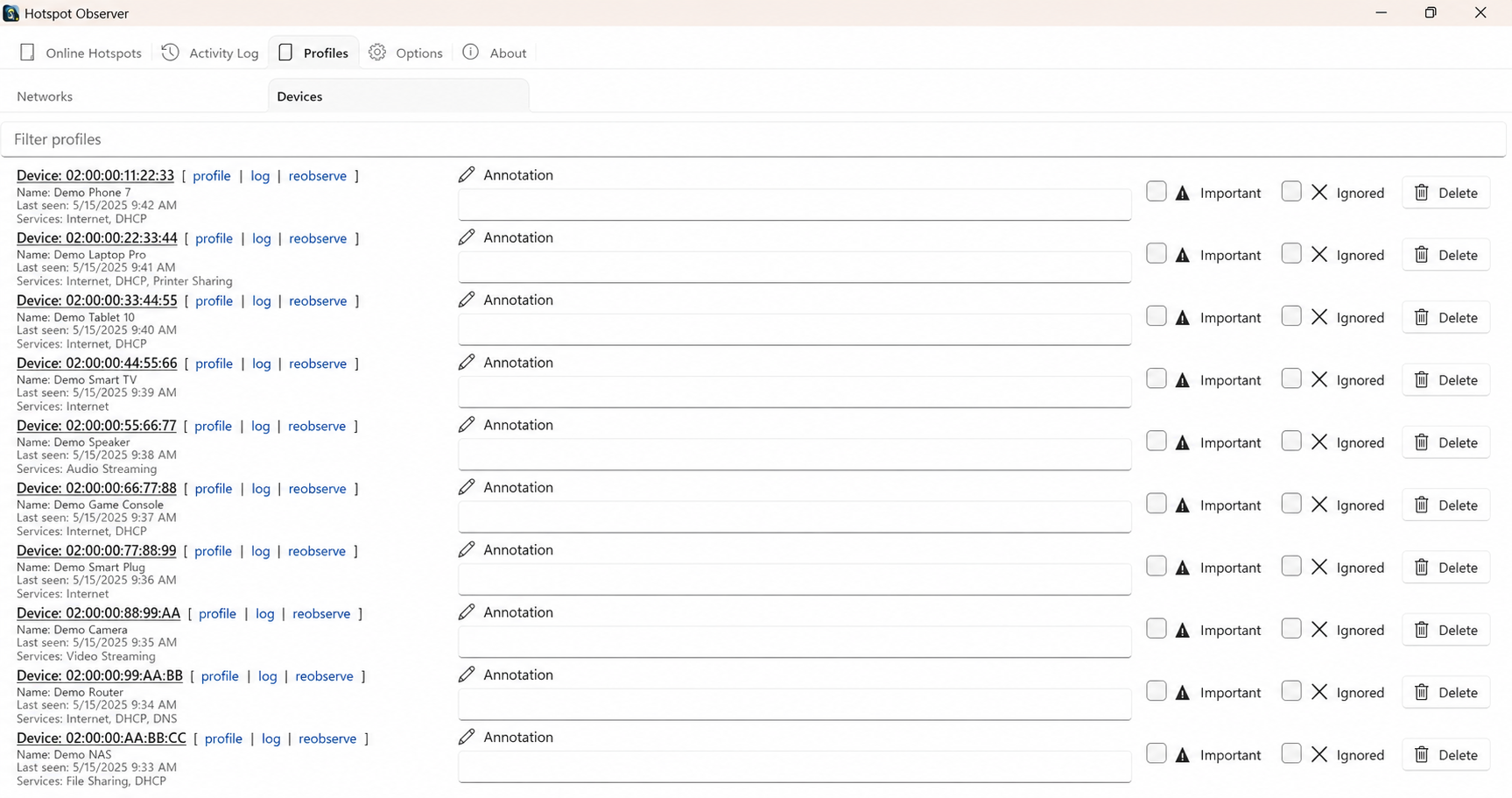
Recognize the item. Find the network or device in Visible Hotspots or Profiles. Add a recognizable note, then mark the item Important.
Choose notification rules. In Options, enable the relevant important-item notification rule. Enable signal or service tracking when those are the events you need.
Inspect the logged event. When a change occurs, open Activity Log and inspect the recorded event. Alerts correspond to logged information while the app is monitoring.
Open the alert. Activate a useful item notification to bring the app forward with that item selected. If a logged event has no alert, check Windows notification settings too.
Open the app view at full size to inspect its controls.
Before you start
Give your result a useful basis
- Enable observation for the relevant radio and any event tracking you need.
- Keep the app running, including with its window hidden, and allow Windows notifications when you want visible alerts.
Identify the right item
Make sure an alert will refer to the right item. Find it in Visible Hotspots or Profiles, check its available technical details and add a recognizable note. Bluetooth devices may advertise only while awake or in a particular mode.
Mark it Important
Mark the item Important so the relevant filters and notification rules can recognize your choice. The marker is your preference; it does not improve measured evidence or establish that a device is trusted.
Choose useful notification rules
Keep alerts relevant to you. In Options, enable the notification condition for important items’ logged events, then review unknown-item and category-change rules separately. Enable signal-change or service-list tracking if you need alerts about those recorded changes.
Check the event first
Understand what prompted an alert by choosing Log on the item or opening Activity Log. Alerts correspond to logged information. Missing events can mean tracking was off, monitoring was not running or the retained period has expired.
Open an alert
Activate a useful item notification to bring the app forward with that network or device selected and scrolled into view. Activated, expired and superseded notifications are dismissed, so you can act on relevant alerts.
Resolve missing alerts
If you missed an alert, check the Important marker, notification rule and your Windows notification settings. Activity Log still lets you inspect or export an event when Windows has muted its notification.
Check what you gained
You can now check that
- The intended network or device is marked Important and the relevant notification option is enabled.
- An alert corresponds to a recorded event, and activating a useful item alert brings the app forward with that item selected and revealed.
Updated by Hotspot Observer · 31 October 2026