Guide 03
Learn how Wi-Fi handled your everyday use
Review the traffic your completed Wi-Fi sessions actually carried without generating a separate test transfer. Keep your own experience alongside those measurements when deciding whether to use the network again.
Where you will workMy networks session traffic, Activity Log, and Recommendations
Allow5 minutes after a normal Wi-Fi session ends
Watch the key steps
A 42-second narrated overview. Follow the full instructions below when you try it.
Read the video transcript
Use Wi-Fi normally. Keep the app running during everyday Wi-Fi use. Let a session end naturally; there is no need to disconnect just to collect a summary.
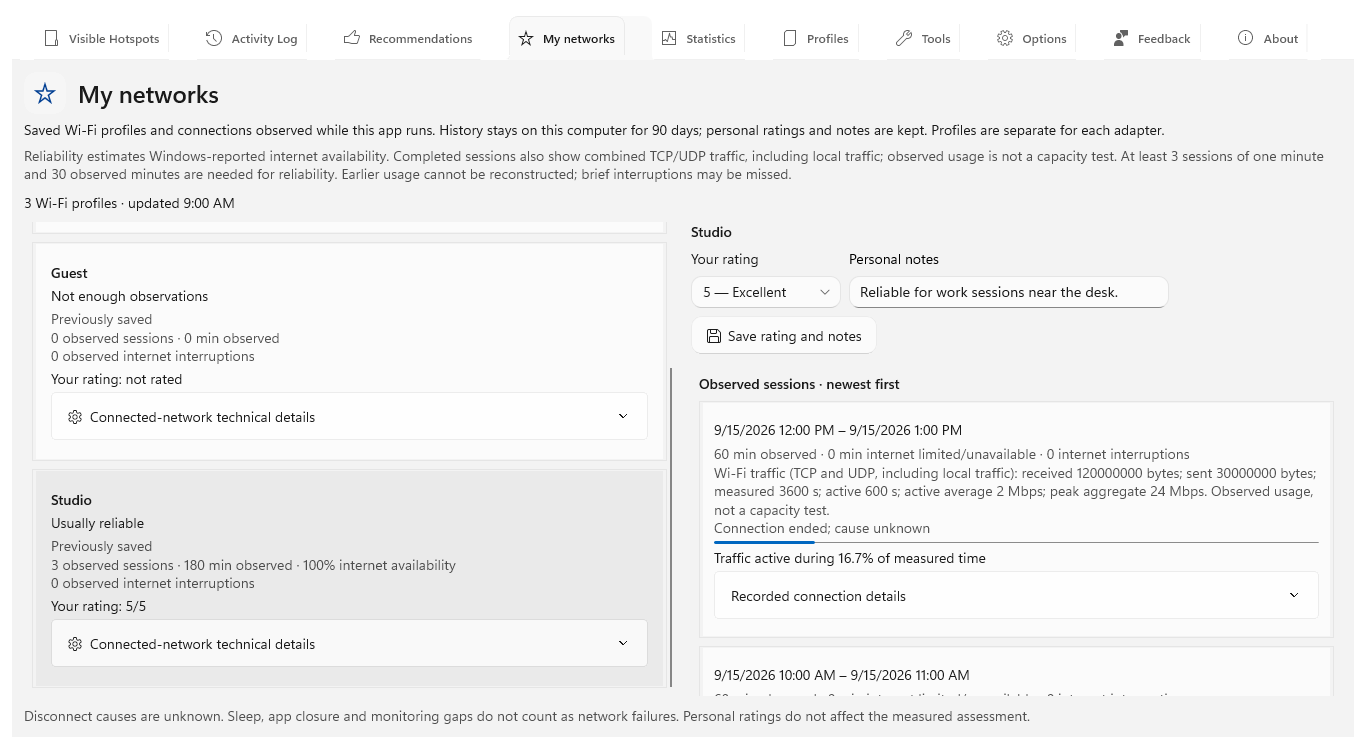
Open the completed session. In My networks, select the saved profile and completed session. Read received and sent bytes alongside measured time and active time.
Interpret throughput. Compare active average and peak combined throughput. Light browsing can produce a low average simply because little traffic was needed.
Add your experience. Save a personal rating and notes. Recommendations uses sufficient recent session traffic as supporting evidence. Adapter traffic includes local traffic and does not measure spare internet capacity.
Open the app view at full size to inspect its controls.
Before you start
Give your result a useful basis
- Keep Hotspot Observer running while you use Wi-Fi normally.
- Allow a session to finish naturally; changing access point also ends its recorded session. You do not need to interrupt a connection just to collect a summary.
Use the connection normally
Collect evidence while doing your usual work: browse, work or transfer files with the app running. Let the session end naturally when you disconnect or change access point. Adapter-counter measurement needs no administrator access and generates no dedicated speed-test transfer.
Open the completed session
Find the session you want to judge in My networks: select its saved Wi-Fi profile and open a completed session. Profiles on different adapters stay separate. You can also find one traffic summary per completed session in Activity Log.
Read bytes and time together
See how much data moved and how much of the measured time included traffic. Review received bytes, sent bytes, measured time and the active-time bar together. Active time means a sample contained traffic, not that you were interacting with the computer.
Interpret the throughput
Put the observed Mbps in context. Active average combines received and sent bytes over active time; peak combined Mbps shows the highest measured rate. Idle samples are excluded, so a low browsing average may reflect light demand rather than a slow connection.
Follow its effect on ratings
Choose how much your actual usage should influence future choices in Options → Wi-Fi rating priorities. Recommendations uses recent completed sessions on the same access point after at least 30 active seconds and one MB. Missing or insufficient measurements receive neutral points.
Add your own experience
Record what the measurements cannot tell you: add a personal 1–5 rating and notes in My networks. These stay separate from calculated scores. Use Tools → Speedtest when you need an active performance check and can allow its substantial traffic.
Check what you gained
You can now check that
- A completed session shows its traffic measurements or an explicit unavailable result.
- You can explain the difference between total measured time, time with traffic, observed throughput and an internet capacity test.
Updated by Hotspot Observer · 21 October 2026