Guide 20
Investigate which Wi-Fi channel to use
Measure the symptom, compare like-for-like conditions and draw a conclusion supported by the recorded evidence.
Where you will workVisible Hotspots · Continuous latency · Speedtest
AllowDepends on the symptom and observation period
Watch the key steps
This related overview shows see which nearby wi-fi networks share channels. Follow the question-specific steps below to complete your investigation.
A 40-second narrated overview. Follow the full instructions below when you try it.
Read the video transcript
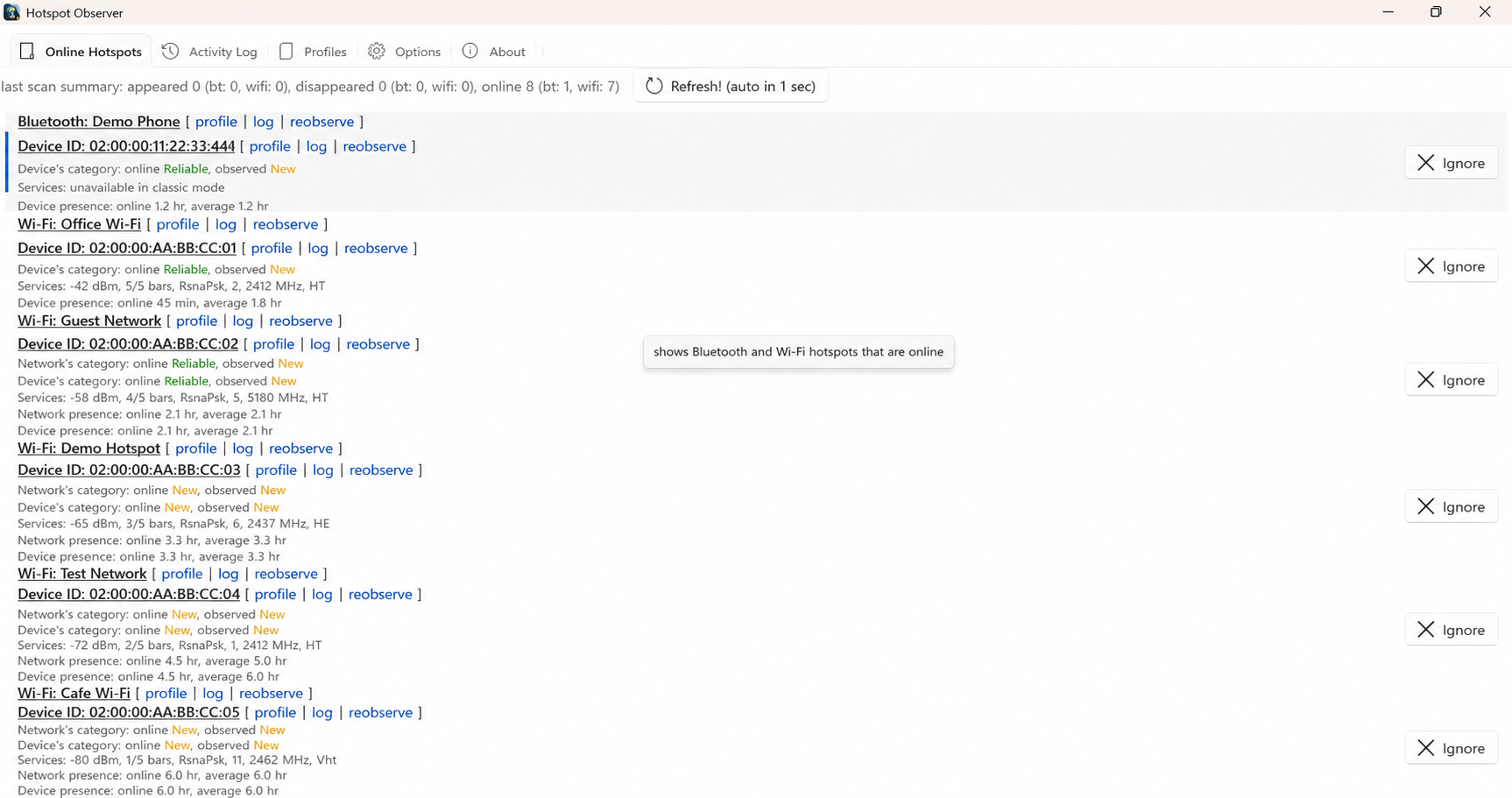
Start from the nearby list. Open Visible Hotspots and choose Wi-Fi. Clear search and minimum-signal filters for an initial overview from the same location.
Match the network and curve. Select a network to highlight its curve and band. Use the colored legend to select and reveal the matching list row.
Check radio details. Expand Technical details and services to read the reported frequency, band and center channel. Missing fields remain unknown.
Save a comparison. Export the selected band's diagram and filtered rows. Curve widths are illustrative; overlapping curves do not establish interference. Use recorded history to assess stability.
Open the app view at full size to inspect its controls.
Before you start
Give your result a useful basis
- Use only networks and devices you are authorized to investigate.
- Record the location, time and active connection. Keep useful history and compare similar observation conditions.
Measure
Inspect the channel diagram beside Visible Hotspots. Select the relevant band and examine the reported channel details of nearby networks, including your own access point when identifiable.
Compare
Observe at the location and hours where performance matters. If you administer the router, compare permitted channel settings one at a time and repeat actual latency and speed measurements under similar demand.
Interpret
Use visible overlap as context for a controlled channel trial, then keep the setting that improves your measured use. Record the original setting so you can restore it if performance worsens.
Check what you gained
You can now check that
- You have measurements and a comparison relevant to your question, with observation gaps and uncertainties preserved.
Updated by Hotspot Observer · 2 November 2026