Guide 11
Understand a change you noticed nearby
Find the recorded moment a Wi-Fi network or Bluetooth device appeared, disappeared or changed. Add context and keep the relevant events so you can compare what happened later.
Where you will workVisible Hotspots, Activity Log, and Profiles
Allow5–10 minutes
Watch the key steps
A 43-second narrated overview. Follow the full instructions below when you try it.
Read the video transcript
Find the item. Start in Visible Hotspots. Find the Wi-Fi network or Bluetooth device, using search and filters when the nearby list is busy.
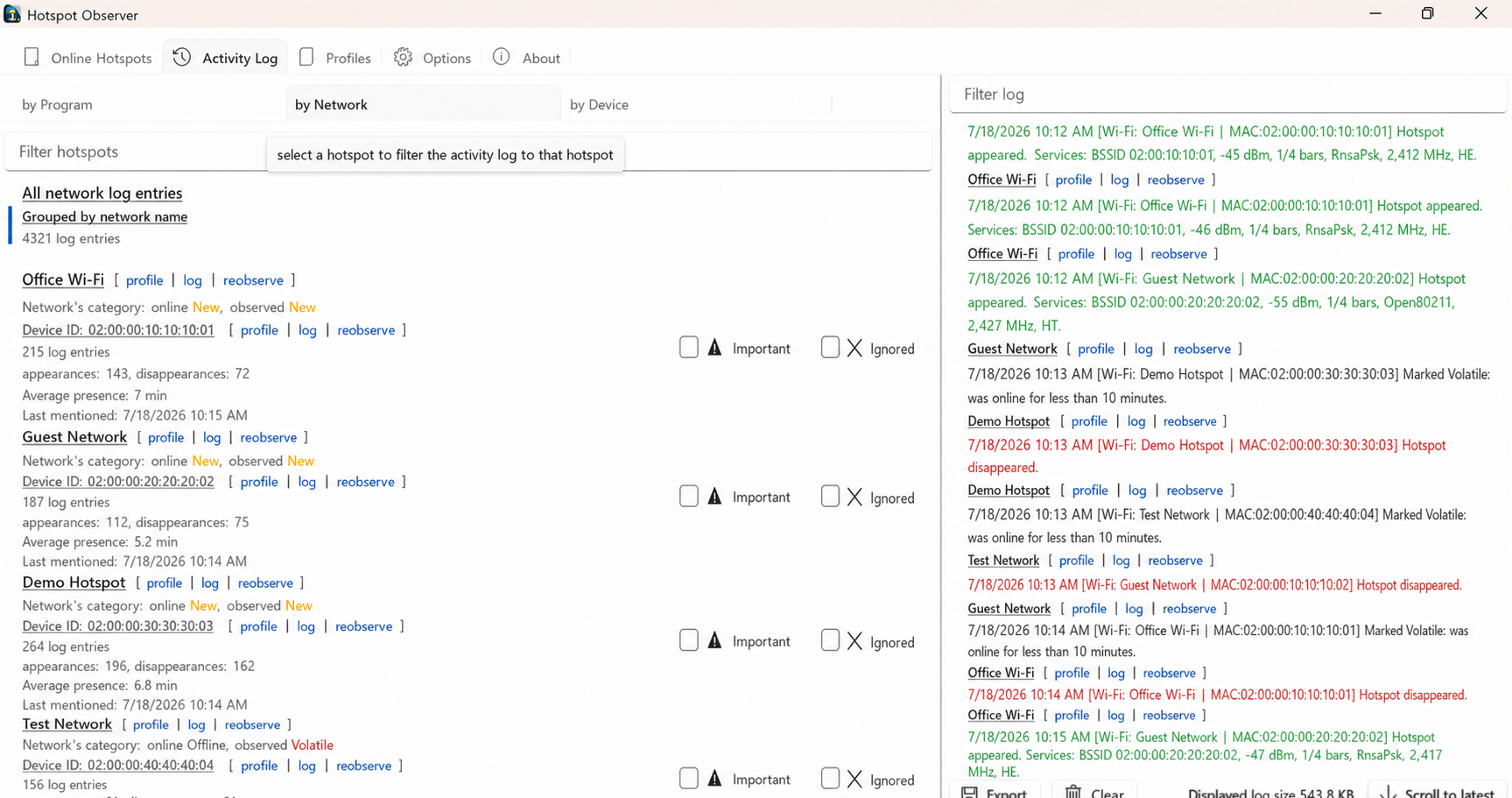
Open its events. Choose Log on the item. In Activity Log, narrow the time range and use Network or Device grouping to inspect the matching events.
Read the change. Read appearance and disappearance rows, plus signal or service changes when tracking was enabled. Scroll to latest returns you to the newest matching entry.
Keep the item recognizable. Save a note in Profiles. A failed scan leaves earlier observations stale; it does not prove disappearance. Missing events may reflect disabled tracking or expired history.
Open the app view at full size to inspect its controls.
Before you start
Give your result a useful basis
- Choose whether you are investigating a Wi-Fi network or a Bluetooth device; use those terms when filtering.
- Confirm Activity Log persistence and the required signal or service tracking options were enabled during the period you need.
- Write down the approximate time of the behavior you want to inspect.
Start with the current list
Locate the item you noticed in Visible Hotspots. Search or narrow the minimum-signal filter when the list is busy. Wi-Fi supports recommendation or signal ordering; Bluetooth devices appear in signal ordering.
Compare Wi-Fi channels
For Wi-Fi, use the channel diagram to understand the surrounding radio layout. Choose a band and select a diagram entry to reveal its row; both panes follow your filters. Curve widths are illustrative, and actual channel width and airtime usage remain unknown.
Open the related events
Go straight to the item’s recorded history with Log. Or open Activity Log, search its text, choose network or device grouping and select the item. Your selection stays in view after updates; tall rows can be scrolled within. Refreshing... hides the log pane until its latest rows are ready while preserving a selection you make during the update.
Read application and place events
Choose Program in Activity Log to see application events without network or device attribution. Use its search to narrow those entries without loading the network and device rows. Choose by Place to group recorded events by place, including unassigned observations. Select All locations in History and analysis to compare places; existing searches and filters still apply.
Reach the latest entry
Use Scroll to latest to reach the newest matching entry after refresh. If you leave the tab, a pending scroll resumes when you return. New events follow the end when you are already there; reading older entries preserves your position.
Read event details
Match the time you noticed to appearance, disappearance, signal-rating or service-list events. Signal and service changes require their Options tracking settings. Failed scans leave earlier observations uncertain rather than proving that an item disappeared.
Make the item recognizable
Make the next investigation quicker by selecting its row in Profiles → Networks or Devices and editing the note in its details pane. Changes save automatically. Use its Statistics action when you want to compare patterns across the retained history instead of reading individual events.
Check what you gained
You can now check that
- The Activity Log is filtered to one network or device and the relevant time range.
- You can identify the appearance, disappearance, signal-bar change, or service-list change that explains what you saw.
- A saved note makes the item easier to recognize later.
Updated by Hotspot Observer · 2 November 2026