Your networks, your notes
Review observed connection sessions. Keep personal ratings and notes alongside your history, separate from app recommendation scores.
Explore My networks ↗Wi-Fi observation and automatic connection for Windows and Linux
Find networks that stay visible through the hours you work. Hotspot Observer combines stability observed over time, explained ratings and connection history to help you choose Wi-Fi. It can reconnect or switch to a higher-rated available network you can access.
Free experimental beta · No account required
For Windows and Linux computers with Wi-Fi · No Android or iPhone version
 Hotspot ObserverWindows and Linux app
Why choose Hotspot Observer?
Signal and channel analysis helps you inspect the Wi-Fi around you. For choosing everyday Wi-Fi, you also need to know what happens over time. Hotspot Observer brings that evidence, its limits and your next connection action together.
Your working day matters
Observe Wi-Fi where you use it. Compare recorded presence and disappearances across the hours that matter to you, then inspect the evidence behind each recommendation.
Follow the office investigation| Your task | A signal-and-channel check | The Hotspot Observer workflow |
|---|---|---|
| Choose Wi-Fi for your working day | Inspect current radio conditions. | Compare recorded stability. Review presence, disappearances and monitoring coverage over the same period. |
| Investigate recurring problems | Examine the conditions when you check. | Find patterns across hours and days. Use timelines, weekday/hour views and Activity Log; keep unmonitored gaps separate from recorded absence. |
| Decide which network to try | Interpret individual readings. | Get an explained shortlist. Compare 0–100 recommendations, their component evidence and limited-history caps. |
| Put the choice to work | Use the readings to guide your next action. | Connect, check and keep the evidence. Use optional automatic reconnection and switching, inspect actual connection sessions, run Tools checks and save visual Excel reports. |
Other analyzers may also offer history, surveys or diagnostics. Choose Hotspot Observer when you want observed stability, explained recommendations and connection actions in one desktop workflow. Visibility alone does not establish internet quality or future uptime.
Try the office Wi-Fi investigation01 / Observe nearby hotspots and calculate ratings
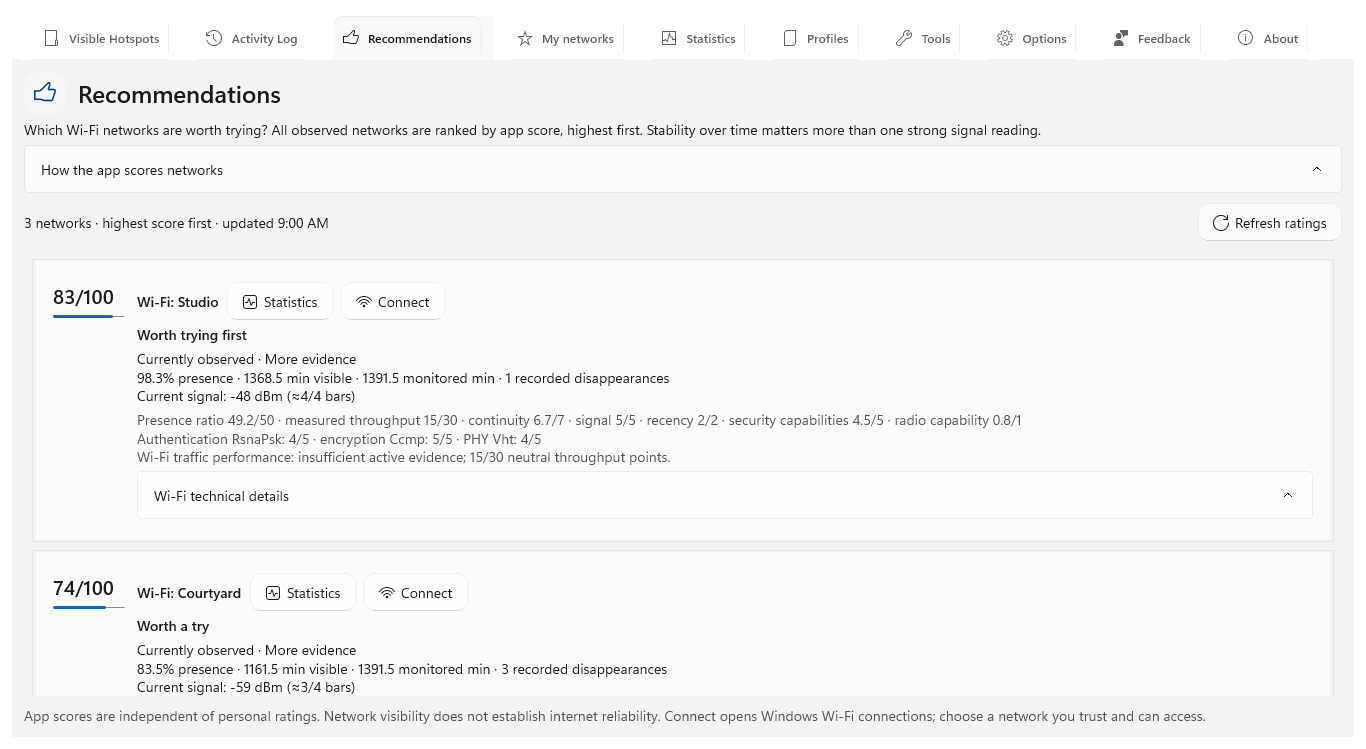
The app observes nearby Wi-Fi networks and calculates a 0–100 recommendation rating from recorded evidence. Observed presence and sufficient recent traffic evidence carry the most weight; recorded disappearances, current signal, recency and technical capabilities also contribute.
Observed visibility helps you shortlist networks. A score does not guarantee internet access, speed or future uptime.
Learn to choose with evidenceExplore the app screen 02 / Keep connected to the best-rated accessible Wi-Fi
With automatic connection enabled, the app can reconnect you to the highest-rated available network it can use. With automatic switching enabled, it can move you to a higher-rated network as nearby choices change. You can also re-choose Wi-Fi from the tray or with Ctrl+Alt+W.
See how Wi-Fi switching worksAutomatic choices use currently available secured networks with saved credentials. Open networks, including saved open networks, require enabling Allow open Wi-Fi networks for automatic connection in Options; it is off by default. The idle safeguard can defer switching; a switch can briefly interrupt connectivity.
03 / See what a single scan misses
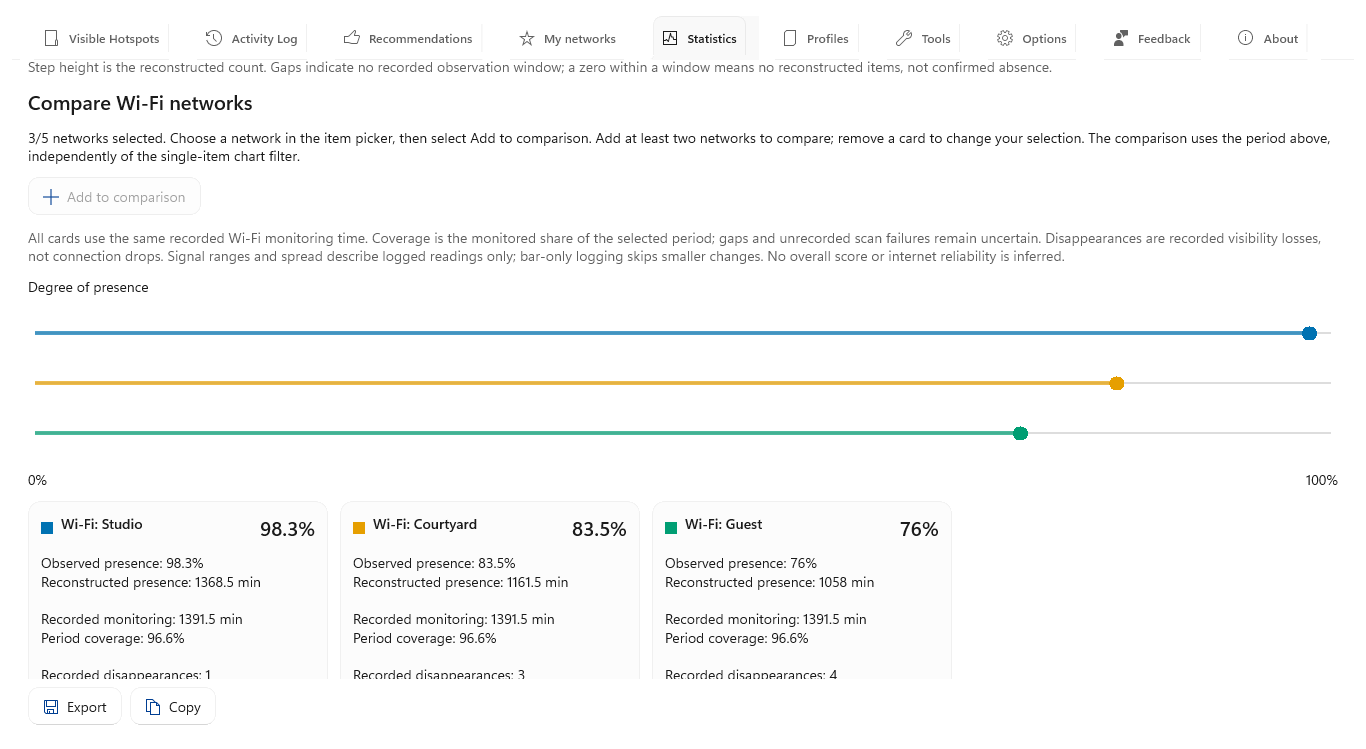
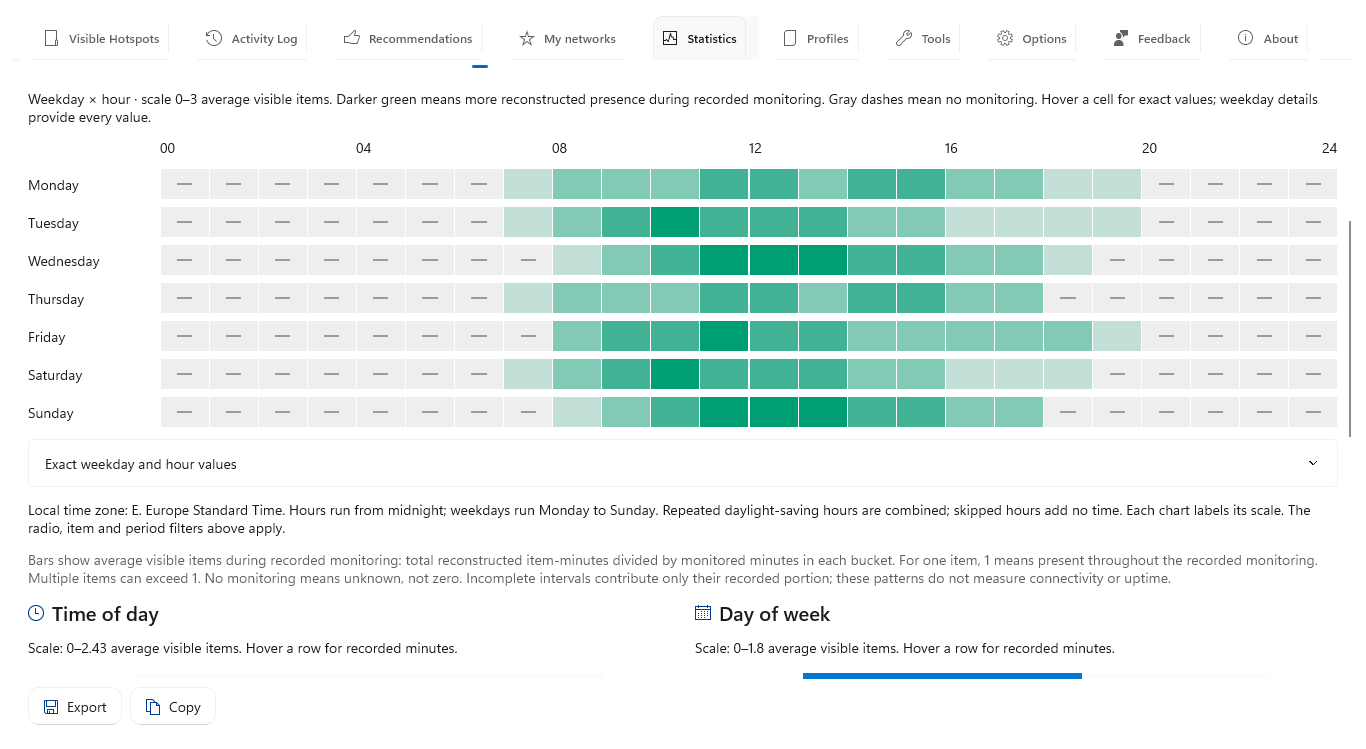
Put up to five networks on the same presence scale. Explore timelines, duration charts and weekday/hour heatmaps to understand what stayed visible where you work.
 Explore the app screen
 Explore the app screen
Export the selected Statistics view with chart images and detailed data. Keep the visual comparison and the observations behind it in the same report.
04 / From a promising network to a tested connection
Run built-in checks after choosing Wi-Fi. Measure receiving and sending speed, monitor latency and reply loss, investigate DNS, inspect connection details, or trace a route.
Produced summaries stay in Activity Log. When the same identified Wi-Fi network remains connected, the result is linked to that network.
Run your first connection checks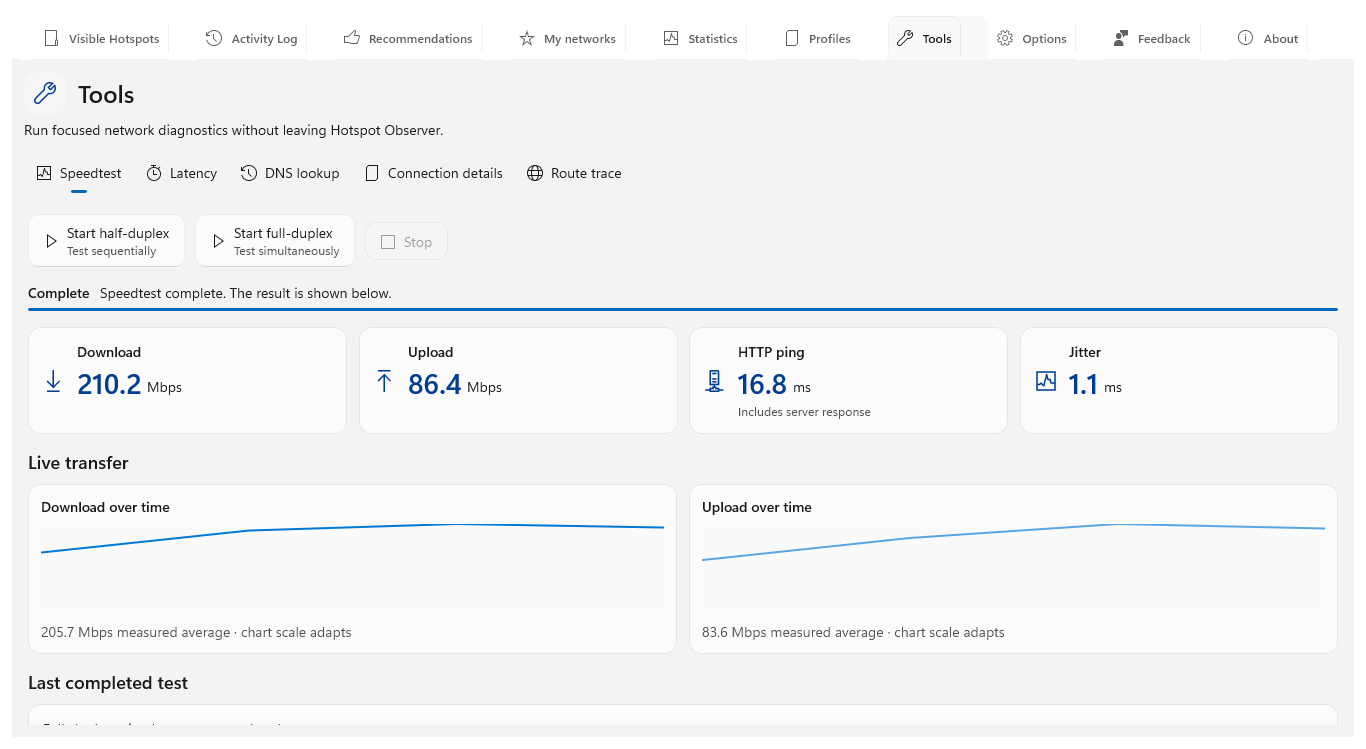 Explore the app screen
Review observed connection sessions. Keep personal ratings and notes alongside your history, separate from app recommendation scores.
Explore My networks ↗Observe nearby networks and devices. Follow appearances and disappearances, save profiles, and choose which notifications matter to you.
Explore the user guide ↗Follow the product tour from recommendations and recorded history through Wi-Fi selection, connection checks and saved results.
Watch the product tour ↗Start where you use Wi-Fi
Run the app where and when you use Wi-Fi. Let it record which networks stay visible and which disappear.
Compare 0–100 recommendation ratings. Open the supporting observations to see why one hotspot ranks above another.
Let automatic connection and switching use the best-rated available Wi-Fi you can access. Adjust the controls in Options, or choose manually from the tray.
Free experimental beta / Windows 10, Windows 11 and Linux
Get the app for your Windows or Linux computer to observe nearby hotspots, compare their ratings and keep connected to better-rated networks you can access. No account required. Published by Vitalie Vrabie.