Guide 15
Investigate slow Wi-Fi despite a strong signal
Measure the symptom, compare like-for-like conditions and draw a conclusion supported by the recorded evidence.
Where you will workConnection details · Speedtest · Continuous latency
AllowDepends on the symptom and observation period
Watch the key steps
This related overview shows find clues when your connection feels slow. Follow the question-specific steps below to complete your investigation.
A 46-second narrated overview. Follow the full instructions below when you try it.
Read the video transcript
Choose the right check. Open Tools on the connection you want to investigate. Use Speedtest for an active performance check only when you can allow substantial traffic.
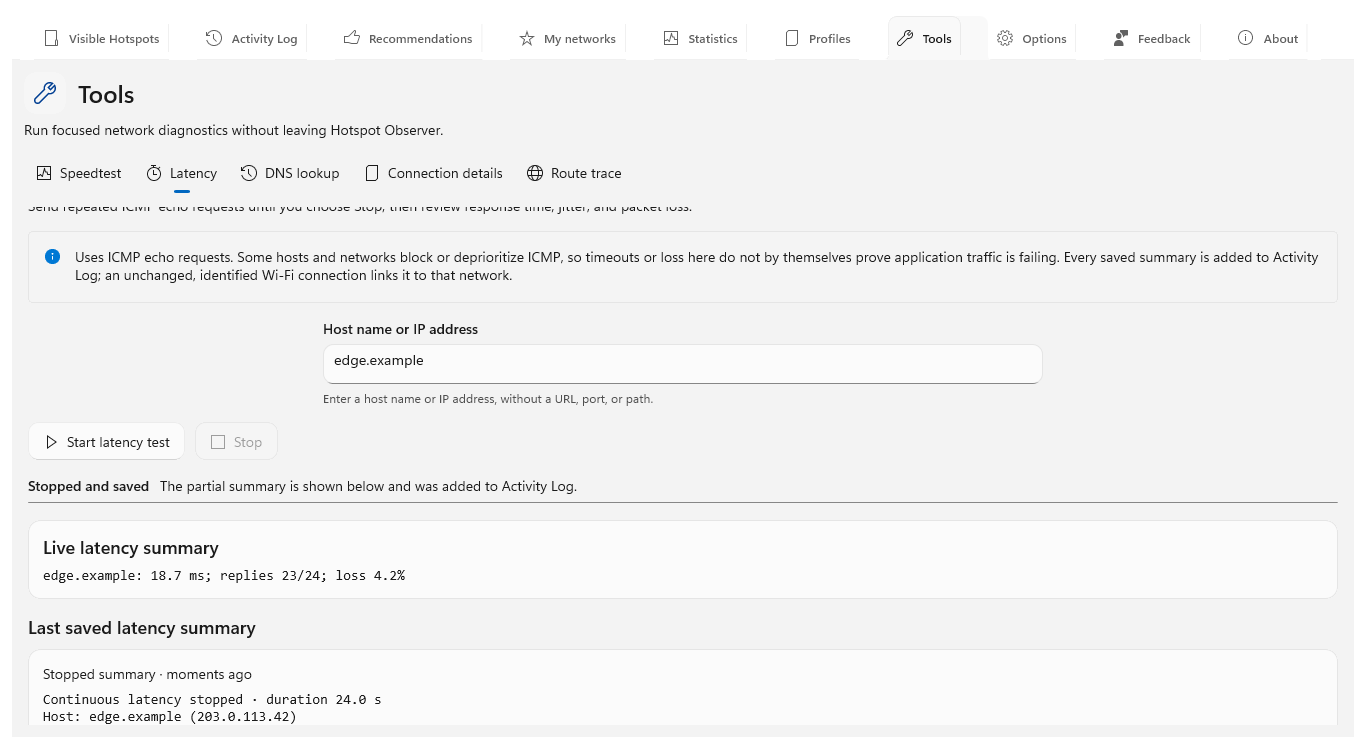
Compare delay and DNS. Use Latency to inspect response timing and DNS lookup to examine name resolution. Keep the destination and connection consistent when repeating checks.
Inspect details and route. Connection details identifies the interface and configuration. Route trace follows responding hops. An unanswered hop can simply mean a router ignores probes.
Review the saved evidence. Review each produced summary in Activity Log. Tools work over Ethernet too. These are momentary checks; compare them alongside recorded Wi-Fi history before choosing a network.
Open the app view at full size to inspect its controls.
Before you start
Give your result a useful basis
- Use only networks and devices you are authorized to investigate.
- Record the location, time and active connection. Keep useful history and compare similar observation conditions.
Measure
Open connection details to confirm which adapter and route carry traffic. Run Speedtest and continuous latency while the symptom occurs; save the time and the connected access point.
Compare
Repeat under similar traffic demand. Compare latency to your router's gateway address with latency to a reachable internet destination. If you can, compare an Ethernet connection on the same router and the same test service.
Interpret
Poor gateway replies point toward the local path or router; clean local replies with poor remote results suggest checking the upstream path. A strong radio signal does not measure available capacity, congestion, reply loss or internet speed.
Check what you gained
You can now check that
- You have measurements and a comparison relevant to your question, with observation gaps and uncertainties preserved.
Updated by Hotspot Observer · 2 November 2026